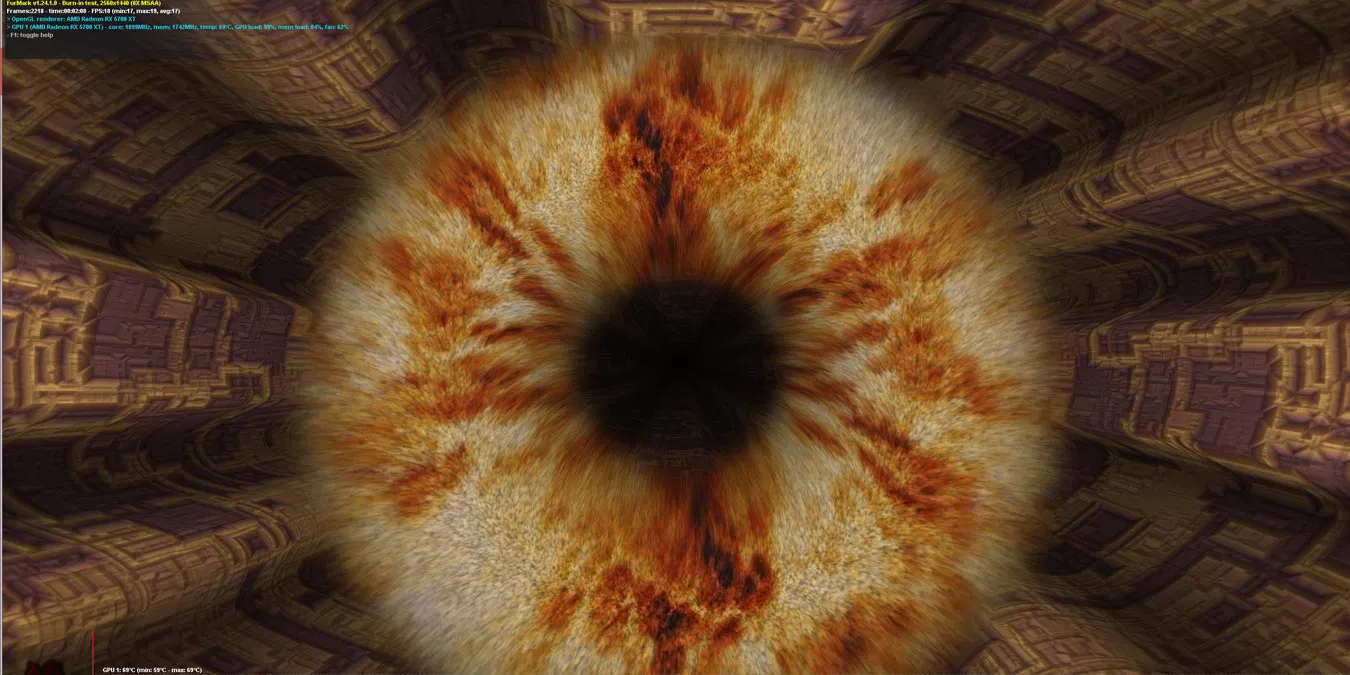
FurMark remains the absolute standard for pushing a graphics card to its maximum thermal and electrical limits. Commonly referred to by PC enthusiasts as a power virus or the donut of doom, this specialized utility intentionally generates a worst-case scenario for desktop hardware. Unlike traditional gaming benchmarks that simulate realistic gameplay scenes with fluctuating loads, this application forces the graphics processing unit to render a continuous, heavily detailed furry object. This localized, intense calculation draws the maximum possible wattage from the power supply and generates extreme heat, making it the definitive way to test hardware stability.
Hardware reviewers, overclockers, and system builders rely on this desktop application to validate cooling solutions and diagnose failing components. If a user installs a custom water block, replaces the thermal paste on an older card, or buys used hardware, running this stress test immediately reveals if the heatsink mounting pressure is adequate. When launching the application, users are greeted by a minimal configuration window where they can define the exact rendering parameters. Once the run begins, the screen displays a rotating, heavily textured torus rendered against a dark background. Below this rendering, a scrolling graph plots the core temperature over time, creating a visual curve that typically spikes quickly before flattening out as the cooling fans ramp up to their maximum revolutions per minute. The simplicity of this visual feedback allows testers to immediately gauge how long it takes for the hardware to reach its thermal equilibrium.
If the temperature curve never flattens and continues climbing past safe limits, the user knows instantly that the cooling solution is failing, allowing them to abort the test before physical damage occurs. Because web-based tools cannot access low-level hardware sensors or bypass browser-level hardware acceleration limits, a native desktop application is the only way to effectively torture-test a dedicated graphics processing unit. The tool strips away unnecessary bloat, offering a straightforward interface dedicated entirely to hardware diagnostics. While it does not reflect the typical framerates a player will see in a modern game, it answers the most critical hardware question: will this computer survive an absolute worst-case thermal load without crashing or catching fire?
Key Features
- Feature Name: Intensive Fur Rendering Workload: The application utilizes highly demanding OpenGL and Vulkan rendering paths to draw dense, computationally heavy furry shapes. This specific algorithm is designed explicitly to consume maximum power and generate maximum heat, exposing weaknesses in graphics card cooling systems immediately. The algorithm is specifically tuned to keep the calculation units fully saturated, leaving zero idle time for the silicon to cool down between frames.
- Feature Name: Real-Time Sensor Monitoring: An integrated on-screen display continuously updates critical hardware metrics during the run. Users can monitor core temperatures, memory temperatures, fan speed percentages, and power draw in real time without needing to run secondary overlay programs. This includes tracking the hotspot temperature—the single hottest sensor on the die—which is critical for diagnosing dried-out thermal paste or poor cooler contact.
- Feature Name: Hardware Diagnostics Integration: The software bundles underlying tracking technology from GPU-Z and GPU Shark directly into the interface. This provides deep diagnostic readouts about the specific silicon, driver status, and bus interface before initiating any heavy loads. This eliminates the need to cross-reference specifications in the operating system menus, as all relevant clock speeds, memory capacities, and driver details are visible directly within the testing environment.
- Feature Name: Customizable Stress Parameters: Testers can dictate the exact parameters of the workload by selecting specific display resolutions, switching between windowed or fullscreen modes, and applying heavy multisample anti-aliasing (MSAA) to shift the bottleneck across different parts of the silicon.
- Feature Name: Artifact Detection System: The rendering engine includes a mathematical scanning tool that looks for calculation errors in the video memory. It flags microscopic rendering faults and calculation mistakes that indicate unstable overclocks, often catching them before human eyes notice visual screen glitches.
- Feature Name: Command-Line Automation: System administrators and professional hardware testers can trigger benchmark runs through batch scripts. This allows for automated, repeatable testing cycles with predefined durations and resolution flags without navigating the graphical user interface.
- Feature Name: Data Logging and Scoring: Upon completing a predefined benchmark duration, the application generates a final score and exports the telemetry data to a local log file. Builders use this output to compare raw thermal performance against baseline stock metrics to verify that the hardware is performing to factory specifications.
How to Install FurMark on Windows
- Navigate to the official Geeks3D repository and download the Windows executable installer package to your local storage.
- Double-click the downloaded executable file to launch the setup wizard and accept the standard Windows User Account Control prompt.
- Read and accept the end-user license agreement presented by the developer on the first screen. The application requires administrator privileges to interface directly with low-level hardware sensors.
- Review the installation path; the installer defaults to the standard Program Files directory. This local drive path is optimal for ensuring the application has the necessary permissions to read hardware sensors, though it can be installed on secondary drives if needed.
- Select the option to create a desktop shortcut and a Start menu folder for rapid access to the testing dashboard.
- Click the install button to extract the core rendering files, graphical libraries, and integrated sensor reading components onto the disk.
- Finish the setup process and launch the application directly from the final installer screen.
- Upon the first launch, carefully read and acknowledge the developer's stark warning regarding extreme hardware stress, thermal damage risks, and system instability before initiating your first benchmark run.
FurMark Free vs. Paid
The application operates entirely on a freeware model. The developer provides the complete tool without any financial cost, paywalls, or feature restrictions. Every user has immediate access to the highest resolutions, unlimited stress test durations, and all integrated hardware monitoring components from the moment they install the software on their machine.
Unlike many commercial benchmarking suites that lock custom resolutions, looping stress tests, or detailed data logging behind a premium license, this tool leaves all testing parameters open. The business model relies primarily on community goodwill, optional donations, and website hosting support rather than direct software monetization. Users are never prompted to enter credit card details or register an account to access the rendering tests.
This completely unrestricted access makes it the default diagnostic utility for budget-conscious PC builders, repair shops, and home users testing second-hand hardware. Commercial repair technicians often deploy it across multiple test benches simultaneously without worrying about licensing audits or seat limits. Because there are no trial timers or export limits, technicians can leave the application running for hours to verify the long-term thermal stability of a rebuilt machine without purchasing an enterprise license. The lack of a pro tier means every user is testing with the exact same uncompromised workload.
FurMark vs. OCCT vs. Unigine Superposition
OCCT serves as a holistic system diagnostic suite rather than just a graphics card burner. While it includes graphical workloads, its primary strength lies in identifying microscopic calculation errors across the main processor, system RAM, and video memory. Builders looking to validate a complete system overclock, particularly focusing on memory timing stability, should utilize OCCT's highly sensitive error-checking routines. OCCT allows you to isolate specific components, such as pinning the system memory at maximum capacity or targeting the processor cache, making it a better diagnostic tool for general hardware crashes.
Unigine Superposition acts as a traditional gaming benchmark, rendering a highly detailed 3D environment with realistic lighting, physics, and textures. It is designed to evaluate how a graphics card will actually perform in a demanding modern video game. Testers who want to check game stability, measure frames per second, or validate mild overclocks without artificially triggering thermal throttling will find Superposition much more relevant to daily use. Superposition includes interactive elements and varied scene complexities, meaning the load fluctuates just like a real video game, allowing the hardware to boost to its maximum clock frequencies naturally.
FurMark remains the superior choice when the strict goal is generating the absolute maximum amount of heat and power draw. If a technician needs to verify whether a power supply will trip under maximum load, or if a newly installed liquid cooling loop is making proper contact with the bare silicon die, the donut of doom provides a faster, more brutal, and more definitive answer than either alternative. It bypasses the fluctuating loads of gaming to deliver a flat, unrelenting current draw, forcing the hardware to reveal its absolute thermal ceiling within minutes.
Common Issues and Fixes
- System hard crashes or shuts down completely. This usually indicates that the power supply unit cannot handle the extreme wattage spike, or a critical thermal limit triggered an emergency motherboard shutdown. Reduce the graphics card power limit in your tuning software or upgrade the power supply to handle the peak transient draw.
- Core clock speeds drop significantly compared to gaming. Modern graphics cards recognize this specific power virus workload and automatically throttle down their operating frequencies to prevent hardware damage. This is expected behavior designed to keep the silicon within safe voltage limits.
- The software detects artifacts but none are visible. The mathematical scanner catches microscopic memory calculation errors before they manifest as visual screen glitches. Lower your video memory overclock to restore complete mathematical stability.
- Temperatures spike instantly upon starting the test. Immediate overheating suggests degraded thermal paste or uneven mounting pressure on the heatsink. Disassembling the cooler, applying fresh thermal compound, and carefully retightening the screws typically resolves immediate thermal throttling.
- The application fails to launch or throws a graphics API error. The software requires specific rendering libraries to function. Ensure you have installed the latest graphics drivers from your hardware manufacturer, which include the necessary OpenGL and Vulkan runtime components.
- Micro-stutters or system lag while the test is running. Because the rendering engine is designed to consume the maximum available graphics resources, the operating system will struggle to draw basic interface elements like the mouse cursor or taskbar. This severe interface lag is entirely normal during a run and resolves immediately once the benchmark window is closed.
Version 2.10.2 — October 2025
- Added support for new GPU models, including the AMD Radeon RX 9060, RX 7700, and NVIDIA GeForce RTX 5090 D v2.
- Improved hardware monitoring capabilities for Raspberry Pi 5 and Intel Arc GPUs on Linux systems.
- Fixed a critical bug in the Vulkan plugin that affected AMD Radeon RX 7000 and RX 6000 series cards (newer RX 9000 series were not impacted).
- Updated core GeeXLab libraries to version 0.66.2 for better stability.