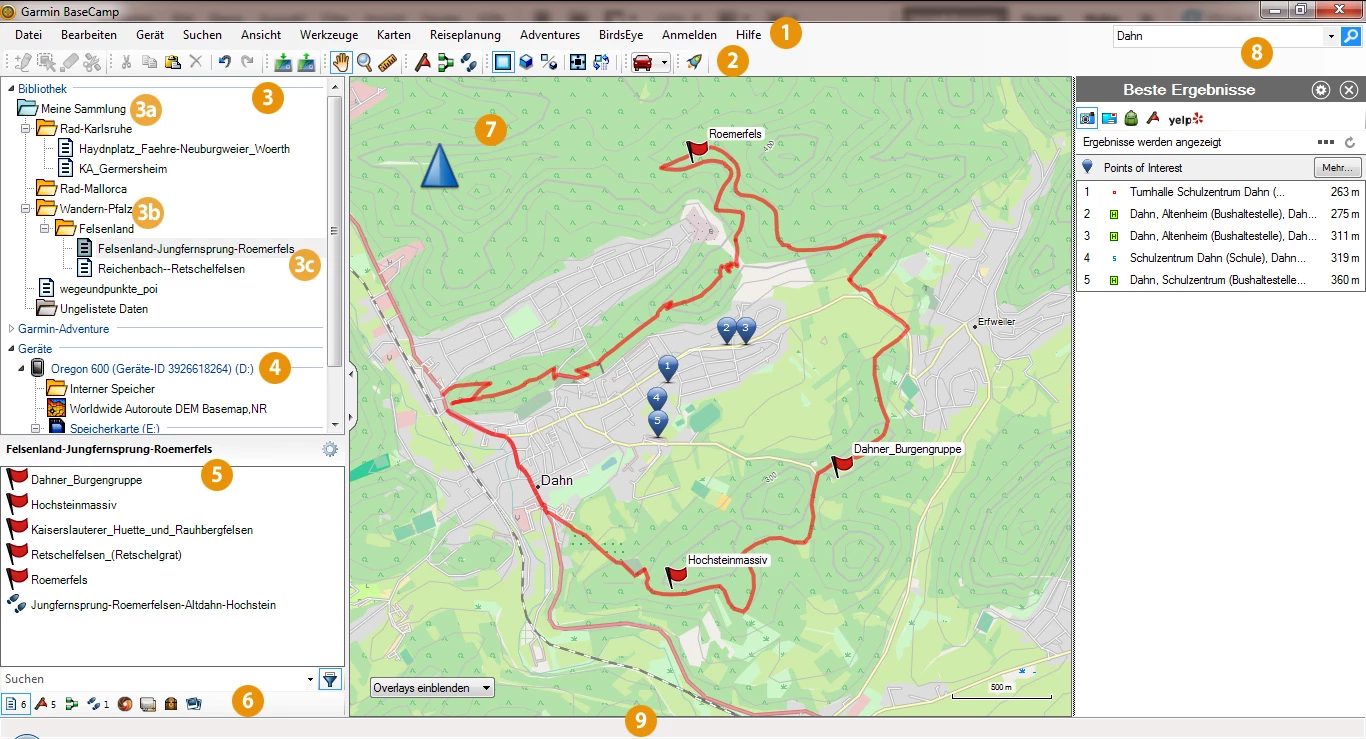
Garmin BaseCamp operates as the primary desktop interface for hikers, motorcyclists, hunters, and off-road drivers who rely on dedicated GPS hardware to navigate outside of cellular network coverage. Rather than plotting a route on a smartphone screen, outdoor enthusiasts use this desktop environment to organize complex topographical maps, chart off-grid tracks, and manage waypoint data before transferring it to a handheld or dashboard receiver. By utilizing a full monitor layout and a traditional mouse-and-keyboard workflow, users can accurately drop waypoints on terrain features, measure precise trail distances, and divide long overland expeditions into manageable daily segments.
While modern web-based mapping tools work well for casual trip planning, they struggle with proprietary hardware ecosystems and offline mapping standards. This software directly solves the problem of offline route management by communicating securely with a connected receiver via USB. Users bypass web browsers entirely to interact with high-resolution local map files, build localized databases of hunting blinds or trailheads, and audit historical track logs recorded during previous excursions. The application acts as a digital filing cabinet for field data, allowing users to categorize multiple trips into custom library folders.
Planning a backcountry trip requires specific geographic data that standard road mapping applications ignore. The interface exposes elevation contour lines, public land boundaries, and topographic shading when paired with the correct map packages. Because it processes map rendering locally using the desktop graphics hardware, the application does not require an active internet connection to function once the initial map data is loaded. This local-first architecture makes it the standard utility for expedition leaders who need to review their satellite imagery and plot exact GPS coordinates on a Windows computer before heading into remote wilderness.
Key Features
- Track and Route Creation: Users construct navigational paths by clicking specific points on a digital map, which the software then connects. The application distinguishes between tracks, which are literal breadcrumb trails of a recorded journey, and routes, which rely on the underlying map data to snap to known trails or roads. Users can split long routes into multiple files, invert tracks to create return journeys, and adjust the color of individual paths for better visual organization.
- 3D Map Rendering: When working with supported topographic map files, the software utilizes desktop graphics hardware to render terrain in three dimensions. Users control the camera angle to pitch and rotate the landscape, allowing them to visualize steep elevation changes, scout mountain passes, and evaluate line-of-sight visibility for specific ridges prior to field deployment.
- Waypoint Management: The database organizes custom coordinate markers using distinct icons for trailheads, campsites, water sources, and hazards. Users apply batch edits to these waypoints directly within the interface, renaming them, updating symbol types, and adding descriptive text notes that will display on the receiver screen in the field.
- BirdsEye Satellite Imagery Integration: The interface includes a dedicated download tool for retrieving high-resolution raster maps and aerial photography. By selecting a specific boundary box on the desktop map, users download the exact satellite tiles needed for their trip, blending photographic detail with standard topographic contour lines to identify unmapped dirt roads or clearings.
- Activity and Elevation Analysis: After returning from the field, users connect their hardware to import recorded track logs for review. The application generates an interactive elevation profile graph, allowing users to scrub through their route to view specific altitude points, calculate total ascent and descent values, and identify the exact grade of a difficult climb based on their recorded GPS data.
- Geotagged Photo Mapping: The software reads the location metadata embedded in digital photographs and drops the images onto the map at the exact coordinates where they were captured. This allows off-road drivers or trail scouts to build a visual reference log of specific terrain obstacles, trail conditions, or campsite layouts based on real-world photo evidence.
How to Install Garmin BaseCamp on Windows
- Download the official Windows installer package from the vendor repository and locate the executable file in your local downloads folder.
- Double-click the installer to launch the setup wizard, which will first verify that your Windows environment includes the required .NET Framework components. If the components are missing, the installer will automatically retrieve and install them before proceeding.
- Review the software license agreement on the initial screen, check the box to accept the terms, and click the Next button to advance the installation.
- Leave the default installation directory as prompted, or click the Options button to specify a custom local drive path if you prefer to keep your geographic software separate from your primary system drive.
- Click the Install button and wait for the wizard to unpack the core application files, map rendering engine, and device drivers necessary for USB communication with external receivers.
- Once the installation completes, click Finish to close the wizard and launch the application for the first time.
- To populate the application with detailed mapping data, connect your GPS receiver to your computer via USB. The application will automatically detect the hardware and index the pre-loaded map files directly from the receiver's internal storage or inserted SD card.
Garmin BaseCamp Free vs. Paid
The desktop application itself is completely free to download and install. The vendor does not charge a license fee to use the software, nor do they restrict core functionalities behind a trial watermark or a required subscription. Users can import tracks, create routes, manage waypoints, and export GPX files without spending any money.
However, the utility of the software depends heavily on the map data loaded into it, and this is where the commercial ecosystem takes effect. The default base map included with the free installation contains only major highways and low-resolution borders, which is insufficient for backcountry navigation. To acquire detailed topographic lines, trail networks, or street-level routing data, users must purchase specific map packages, such as the Topo 24K series or City Navigator. These map purchases are tied to specific hardware devices or provided via physical SD cards.
Additionally, access to the BirdsEye Satellite Imagery service requires a paid annual subscription. This subscription unlocks the ability to download high-resolution raster tiles through the desktop interface for offline use. Some specific premium receivers include a complimentary one-year subscription to this service out of the box, but once that period expires, users must pay the renewal fee to continue downloading new aerial tiles. Users looking for a strictly free experience can manually import open-source map files formatted for the vendor ecosystem, though this requires technical workarounds outside the default interface.
Garmin BaseCamp vs. QMapShack vs. Google Earth Pro
QMapShack serves as an open-source mapping environment designed for advanced users who want to manage GPS data without being tied to a specific hardware vendor. It natively handles multiple routing engines and imports standard open-source maps without requiring file conversion. Users who rely on a mix of different hardware brands, or those who prefer working entirely with free community-driven map databases, usually prefer QMapShack to avoid the proprietary map restrictions enforced by commercial vendors.
Google Earth Pro excels at visual terrain scouting via its massive, frequently updated global satellite database. The desktop application allows users to fly through 3D canyons and draw rough paths over satellite imagery with a highly fluid rendering engine. However, Google Earth Pro is not built for managing handheld GPS file hierarchies, it does not support topographic contour line maps natively, and extracting coordinate data into a field-ready format requires exporting standard KML files that must then be converted to GPX.
Garmin BaseCamp remains the superior choice for users who already own the vendor's navigation hardware and need a direct, secure pipeline to push complex data to their devices. While its map rendering might feel less fluid than Google Earth Pro, its native USB integration, direct read-access to maps stored on an SD card, and built-in understanding of hardware-specific waypoint symbols make it the most reliable workflow for staging an off-grid expedition.
Common Issues and Fixes
- Detailed map fails to display. Users frequently connect their receiver but only see a basic map with major highways. This happens if the map view settings are restricted. Go to the View menu in the top toolbar and uncheck "Basic Map Only," then adjust the Map Detail slider to "Highest" to force the software to render topographic lines and local trails.
- Hardware receiver is not detected via USB. The desktop application will fail to recognize a connected device if another mapping utility is currently running and locking the USB port. Close any background updater applications, unplug the device, and plug it back into a direct motherboard USB port rather than an external hub.
- Maps on an SD card do not load into the library. The application cannot read map files from an SD card if the external device is set to the wrong connection mode. Access the settings menu on your physical receiver, navigate to Interface, and change the connection type to "USB Mass Storage" to allow the computer to read the card as a standard external drive.
- Corrupted map cache prevents launch. Occasionally, a bad map transfer will corrupt the local cache, causing the application to hang during startup. Press the Windows Key + R, type %userprofile%AppDataLocalGarminBaseCamp into the run dialog, and delete the CardProductCache folder to force the application to rebuild its map index on the next launch.
Version 4.7.5 — March 2023
- Implemented comprehensive maintenance updates to ensure continued system reliability.
- Improved overall application stability to minimize crashes and optimize performance.
- Fixed various miscellaneous bugs and internal errors affecting user experience.