Optical media has largely vanished from modern computer hardware, yet the digital legacy of CDs, DVDs, and Blu-ray discs remains heavily embedded in archival workflows. Users frequently interact with disc images to preserve retro game collections, access discontinued software offline, or store localized video backups without relying on fragile physical discs. WinCDEmu provides a direct method for mounting these digital archives directly into the Windows operating system. Operating as an open-source emulator, it bypasses the need for physical optical drives by reading raw image files and treating them exactly as if a physical disc were inserted into a hardware tray. The application assigns a standard drive letter to the image, allowing any local program to read the directory structure, launch installers, or play media assets natively.
Modern Windows environments include native support for basic ISO files, but this default capability often falls short for users dealing with a wider variety of archival formats. Programs created in the early 2000s or backups generated by specialized authoring suites frequently use proprietary extensions that the native file explorer cannot interpret. WinCDEmu solves this gap by supporting a broad spectrum of legacy and niche image types, ensuring that older files remain entirely accessible on contemporary hardware. Because it relies on a custom virtual bus driver, it communicates directly with the operating system at a low level, resulting in immediate mounting operations that do not stall the file browser or require launching a heavy secondary dashboard.
This utility is built specifically for users who want optical drive emulation to remain invisible until it is needed. Instead of managing a persistent application window, IT administrators, software developers, and archivers interact with the tool entirely through standard right-click context menus. This approach keeps system resource usage strictly tied to active mounting tasks. Whether setting up an isolated local server from an archived disc image or extracting old family videos stored in a proprietary format, the software provides a highly focused, single-purpose workflow. By avoiding unnecessary cataloging features, the application maintains strict utility for pure file access.
Key Features
- Broad Format Compatibility: Beyond standard ISO files, the software mounts CUE, NRG, MDS/MDF, CCD, and IMG archives natively. This expanded support allows users to open legacy backups created by older burning suites without needing to convert the files manually. The emulator translates the internal file structures of these formats so the operating system can read them as standard optical data.
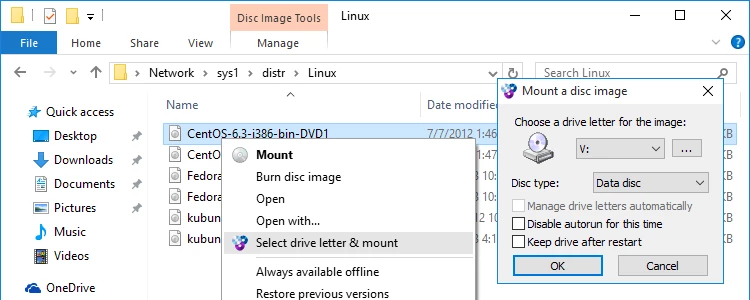
- One-Click Explorer Integration: Mounting an archive requires only a double-click on the target file. A small dialog box immediately opens over the current window, allowing users to assign a specific drive letter, choose the media profile, or instruct the operating system to handle letter assignment automatically. This prevents users from navigating away from their active directory to load a disc.
- Unlimited Virtual Drives: The application allows users to mount an unlimited number of images simultaneously, bound only by the availability of standard alphabetical drive letters. There is no requirement to pre-allocate or reserve these drives in advance. When an image is unmounted, the virtual drive disappears entirely, ensuring that the system interface does not become cluttered with empty hardware entries.
- Context Menu ISO Creation: Users can generate new ISO files directly from physical media or local directories by right-clicking the source folder in the file browser. Selecting the "Build an ISO image" shortcut opens a basic destination prompt, converting entire folder hierarchies into standard disc images. This eliminates the requirement to install a separate authoring application just to pack files into a standardized optical format.
- Automatic Unmounting via Eject: Virtual drives created by the application behave identically to physical hardware within the operating system. To release an assigned drive letter and close an active image, users simply right-click the mounted volume in the file browser and select the standard Windows "Eject" command. The driver immediately cuts access to the file and removes the temporary optical device from the hardware list.
- Persistent Drive Assignments: For environments where specific software relies on fixed paths, users can check the "Keep drive after restart" box during the mounting process. This instructs the device driver to reload the image into the exact same drive letter every time the computer boots. This is highly practical for locally installed programs that demand the original installation media be present for license verification or asset loading.
How to Install WinCDEmu on Windows
- Download the Windows installer package from the official Sysprogs project website.
- Locate the downloaded executable file in your local directory and double-click it to launch the setup wizard.
- Review the GNU Lesser General Public License terms presented on the first screen and click the button to accept the agreement.
- Select the local destination folder where the core application files and driver assets will be stored.
- Choose whether to install the context menu extensions, which enable the right-click mounting and ISO creation shortcuts.
- When the Windows User Account Control prompt appears, grant administrator privileges to allow the setup to configure the system registry and hardware paths.
- A separate Windows Security warning will pop up asking to install the Sysprogs device driver; click Install to authorize the virtual bus driver, which is strictly required for the operating system to emulate physical optical hardware.
- Complete the installation process and navigate to the Start Menu to launch the Settings panel, where you can define default drive letter preferences and toggle administrator requirements for future mounting actions.
WinCDEmu Free vs. Paid
WinCDEmu operates under a completely free and open-source model governed by the GNU Lesser General Public License (LGPL). Users can download, install, and operate the tool for personal, educational, or commercial purposes without ever purchasing a license. The developer does not lock essential format support, multiple drive emulation, or ISO creation behind a paywall, ensuring that the entire capability of the software is available to all users immediately after the installation finishes.
Unlike many commercial optical drive emulators that heavily monetize their free tiers, this application contains no advertising, no bundled third-party browser extensions, and no trial watermarks. The project relies strictly on open-source code contributions and voluntary donations to maintain development. This philosophy completely removes the upsell tactics and notification spam commonly found in the disk imaging utility category. There are no mandatory account registrations, subscription tiers, or internet checks required to mount files.
For specialized enterprise environments or developers building proprietary applications, the vendor offers custom commercial licensing upon direct request. Organizations that wish to embed the mounting engine into their closed-source software distribution pipelines can negotiate a specific license to bypass standard LGPL restrictions. This enterprise path provides direct technical support and custom modifications, but for the vast majority of end users, the standard open-source release handles all mounting tasks at no financial cost.
WinCDEmu vs. DAEMON Tools Lite vs. Virtual CloneDrive
DAEMON Tools Lite is a heavily monetized commercial emulator that offers extensive features, such as overriding specialized disc copy protections and cataloging a massive library of images through a dedicated graphical dashboard. However, its free tier intentionally limits the number of concurrent virtual drives, embeds in-app advertisements, and frequently prompts users to upgrade to a paid subscription for full format compatibility. Users who specifically need to bypass copy protection on highly protected legacy game discs often choose DAEMON Tools, but users seeking a quiet, ad-free utility often find the interface overly intrusive for basic mounting.
Virtual CloneDrive provides a much simpler, freeware alternative that offers basic image mounting through context menus and supports up to fifteen simultaneous virtual drives. While it lacks the aggressive monetization tactics of DAEMON Tools Lite, it is a closed-source product maintained by Elaborate Bytes that receives highly infrequent updates. Furthermore, it strictly functions as a reader, offering no built-in capability to create new ISO files from local folders. It is a highly reliable option for reading standard formats, but its overall feature set remains firmly restricted.
WinCDEmu is the better fit for users who demand a strictly open-source, limitless, and deeply integrated tool that avoids advertisements and arbitrary drive caps. By operating almost entirely through the native Windows file browser rather than relying on a standalone user interface, it provides the fastest possible route from locating an image file to browsing its internal contents. The inclusion of an ISO builder makes it a more versatile standalone application than Virtual CloneDrive, while its microscopic resource footprint thoroughly avoids the system bloat associated with DAEMON Tools Lite.
Common Issues and Fixes
- Windows Security blocks the device driver installation. The application explicitly requires a custom virtual bus driver to emulate hardware at the system level. If a restrictive group policy or an aggressive antivirus utility blocks unsigned or custom drivers, you must temporarily adjust your local security settings or manually approve the Sysprogs driver prompt during the installation wizard.
- Mounted virtual drives remain visible after deleting the original image file. If an image is forcibly deleted from the hard drive or moved to a different directory while still actively mounted, the virtual drive letter may become stuck in the file browser. Right-click the stuck drive, select "Eject," and then restart the Windows Explorer process via Task Manager to clear the phantom hardware entry.
- Mixed-mode CD backups fail to play background audio tracks. The emulator natively mounts the primary data track of disc images but struggles to pass through secondary Redbook audio tracks frequently found in retro gaming CDs. To access these specific audio files, users must extract the tracks manually using dedicated CD ripping software rather than relying on direct emulation.
- The context menu options disappear after a major Windows update. Operating system updates occasionally reset file association preferences or disable third-party shell extensions without warning. Open the WinCDEmu Settings panel from the Start menu and toggle the shell integration options off and back on to immediately restore the right-click mounting and ISO creation shortcuts.
Version Latest — 2025
- Added capability to generate ISO files directly from any selected folder via the context menu.
- Enabled swapping of mounted disc images on an existing virtual drive without needing to eject it first.
- Enhanced the portable edition to support drag-and-drop operations for easier image mounting.
- Introduced a command-line interface for the portable version to allow automation and scripting.
- Resolved issues where the driver might not uninstall correctly when using the portable version.
- Improved the cleanup process to ensure the uninstaller executable is properly removed after use.