Nero Burning ROM remains a specialized authoring tool for archival storage, precise audio extraction, and secure data distribution on optical media. While the default disc management tools in modern operating systems offer bare-bones functionality for copying files, they lack sector-level verification and precise control over the physical burn process. This dedicated application interfaces directly with optical drive firmware, allowing users to configure laser write speeds, define file system structures like UDF or ISO9660, and apply redundancy algorithms. These controls ensure that burned data remains perfectly readable even if the physical CD, DVD, or Blu-ray disc sustains surface scratches over time.
For professionals handling sensitive legal documents, medical records, or large financial archives, relying on volatile flash memory or remote servers introduces security and longevity risks. Burning data to physical optical discs using specialized authoring software guarantees an offline, immutable copy. The application provides a split-pane interface where users select a target format—such as a standard data disc, an audio layout, or a mixed-mode compilation—and drag source files into the layout. It then calculates the exact capacity requirements, warns the user if the data exceeds the blank disc limits, and begins the write process while displaying a real-time log of the drive buffer status and sector writing progress.
Beyond data storage, this authoring tool serves audio engineers, musicians, and home theater enthusiasts who require exact copies of their physical media. Extracting tracks from a commercial audio disc requires reading the Red Book audio standard directly from the physical sectors, a process that standard media players often rush, resulting in skipped frames or digital artifacts. By utilizing error-correction algorithms, the software rips audio tracks accurately and encodes them into lossless formats. It simultaneously queries online databases to append exact metadata, ensuring the resulting files carry the correct artist, album, and track details before they enter a digital library.
Key Features
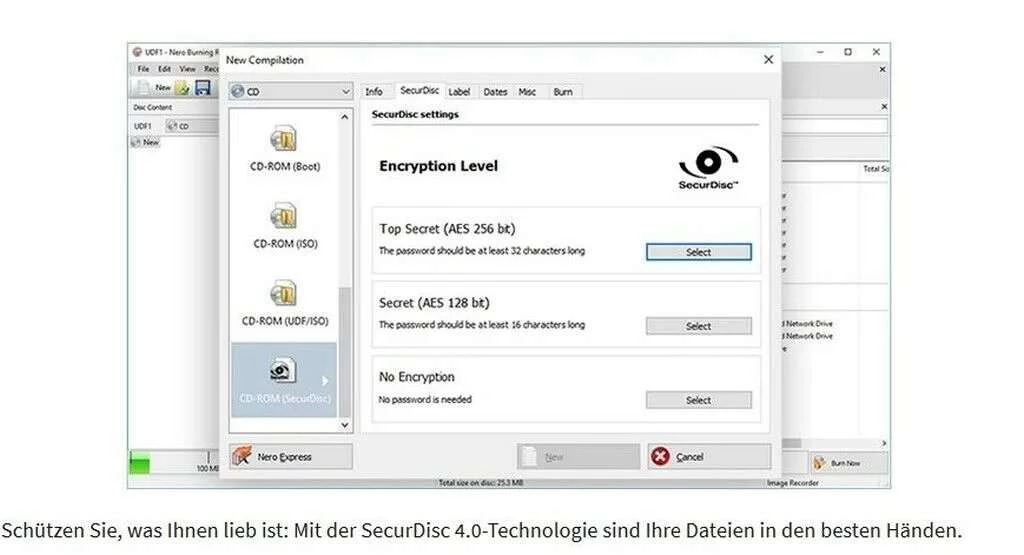
- SecurDisc 4.0 Encryption: Applies 256-bit encryption and password protection directly to the compiled data payload before it is written to the blank media. The process also generates a digital signature to verify file authenticity and injects adjustable data redundancy, duplicating critical sectors so the files remain intact even if the disc surface suffers physical damage.
- Audio Extraction and Encoding: Reads the physical sectors of inserted audio CDs to extract tracks without introducing digital clicks or timing errors. Users can define the exact export format, choosing between standard MP3, AAC, or lossless options like FLAC and APE, while the application handles the sample rate conversion and bitrate allocation.
- Gracenote Metadata Integration: Scans the unique identification codes of inserted audio discs and communicates with the Gracenote database to retrieve accurate tracklists, artist names, and album artwork. The software embeds this information directly into the exported audio files, removing the need to type out song names or search for cover art manually.
- Disc Image Management: Creates exact digital replicas of optical media by reading the source disc and saving the sector structure as an ISO or proprietary NRG file on the local hard drive. These image files act as perfect backups that users can archive, mount virtually, or write back to blank media to produce an identical physical clone.
- Nero DiscSpan Data Splitting: Calculates the total size of a data compilation and automatically divides the files across multiple blank discs if the payload exceeds a single disc capacity. The software optimizes the file distribution to waste as little space as possible and prompts the user sequentially to insert the next blank CD, DVD, or Blu-ray.
- Nero CoverDesigner Layouts: Provides a dedicated workspace for designing paper inserts, booklets, and labels formatted for standard jewel cases or DVD keep cases. Users can pull tracklists directly from their current compilation and print the final design onto paper or directly onto the surface of compatible printable discs using specialized drive hardware.
How to Install Nero Burning ROM on Windows
- Download the official Windows installer package from the vendor website, Steam, or the Microsoft Store.
- Double-click the downloaded executable to launch the setup wizard and allow the operating system to grant administrative privileges.
- Review the end-user license agreement and specify the destination directory on your local drive for the program files.
- Select the custom installation option to verify which components are queued for installation, unchecking any unneeded media playback tools if you strictly want the disc authoring module.
- Click the install button and wait while the wizard unpacks the core executables, registers the file associations for ISO and NRG extensions, and installs the necessary drivers for optical hardware communication.
- Launch the application from the desktop shortcut created during setup.
- Enter your purchased product license code when prompted by the initial startup dialog, or select the option to begin the 7-day trial period.
- Approve any prompt from the local Windows firewall requesting outbound network access, which ensures the application can reach the Gracenote database for audio metadata retrieval.
Nero Burning ROM Free vs. Paid
The application operates as a commercial product and does not offer a permanent free tier. Users who want to test the hardware compatibility with their specific optical drives and blank media can utilize a 7-day trial period. During this week-long window, all authoring tools, audio extraction features, and encryption settings remain fully active without watermarks or export size limits. Once the trial window expires, the software locks the burning functions, requiring the user to purchase and enter a valid product license to restore operation.
When purchasing, buyers typically acquire a perpetual license, meaning they pay a single upfront fee to own that specific iteration of the software permanently. This traditional licensing model avoids mandatory recurring subscriptions, though users who wish to upgrade to a major future iteration will need to pay an upgrade fee. The standalone edition, frequently labeled as the PRO version on storefronts like the Microsoft Store, explicitly isolates the disc authoring application from the vendor broader multimedia suite, lowering the cost for users who only need optical media tools.
Prices vary slightly depending on the digital storefront, but the standalone perpetual license generally costs between $25 and $50. Storefronts like Steam often host the application, allowing users to tie the license directly to their existing gaming and software library, while business suppliers offer volume licensing for enterprise deployment. Regardless of the purchase location, the transaction removes the trial timer and permanently unlocks the SecurDisc archiving functions and Gracenote metadata queries.
Nero Burning ROM vs. ImgBurn vs. Ashampoo Burning Studio
ImgBurn is a strictly free, specialized authoring tool designed primarily for reading and writing image formats such as ISO, BIN, and MDS. Users choose ImgBurn when they require absolute control over drive behavior, such as manually configuring layer break positions for dual-layer video discs or viewing detailed real-time logs of the laser physical write performance. However, ImgBurn lacks native audio CD extraction with metadata tagging and does not offer integrated file encryption, making it a utility for raw image handling rather than a general-purpose multimedia tool.
Ashampoo Burning Studio is a commercial alternative built around user experience and accessibility. It organizes its interface by common tasks, such as Burn Data or Rip Audio, making it exceptionally easy for home users to create video compilations with interactive menus or backup personal files to optical media. While its straightforward design removes the learning curve associated with complex authoring parameters, it lacks the enterprise-grade SecurDisc encryption, password protection, and deep data redundancy algorithms found in more technical applications.
Nero Burning ROM is the better fit for users who need a precise balance between advanced data archiving and comprehensive media extraction. Its split-pane interface caters to users who want exact control over the compilation layout, sector formats, and hardware write speeds. The inclusion of SecurDisc technology makes it the clear choice for securely archiving sensitive financial or legal data, while the integrated Gracenote metadata engine makes it the optimal choice for serious audio enthusiasts digitizing massive physical music collections.
Common Issues and Fixes
- Optical drive not recognized. The software fails to detect the inserted blank disc or the optical drive entirely. This often occurs when the operating system assigns a generic storage driver that prevents the application from communicating with the drive firmware. Open the Device Manager, locate the optical drive under the DVD/CD-ROM drives category, uninstall the device, and restart the computer to force Windows to reinstall the correct controller drivers.
- Buffer underrun errors. The burning process fails mid-write, ruining the blank media. This happens when the local hard drive cannot supply data to the optical drive fast enough to keep the laser continuously writing. Lower the target write speed in the compilation settings, ensure the source files are located on a fast local drive rather than a network share, and close heavy background applications before starting the write process.
- Missing audio track names. Extracted audio tracks are saved as generic files without artist or album names. This means the application failed to communicate with the Gracenote database to retrieve the metadata. Check your local firewall settings and ensure the application executable file is permitted to make outbound network connections, and verify that the physical audio CD is a retail release recognized by the database.
- Encrypted files are inaccessible. Files on a completed SecurDisc compilation cannot be opened on another computer. The host operating system cannot natively decrypt the secured sectors without the correct software tool. Navigate to the root directory of the burned disc, launch the included SecurDisc viewer executable that the authoring tool automatically placed there during the burn, and enter your password to access the stored files.
Version Latest — 2025
- Added a new seamless toggle to switch instantly between the Nero Burning ROM and Nero Express interfaces.
- Expanded Nero Duplicate Manager functionality to detect and remove duplicate audio and video files, streamlining media organization before burning.
- Integrated support for the new "Mix-View" in Nero Start, allowing easier management of different software versions and updates.
- Enhanced burning engine stability for large data compilations and improved support for the latest disc standards.
- Fixed minor interface inconsistencies and optimized launch times via the updated Nero Start hub.