WD Drive Utilities is the official hardware management application for Western Digital external storage devices. Designed specifically for external enclosures like the My Passport, My Book, and Easystore lines, this desktop software provides direct access to firmware-level controls that the default Windows operating system cannot reach. Users rely on it to monitor hardware health, run deep diagnostic scans, and adjust power management settings on their external storage drives. Unlike generic disk management tools, this application communicates directly with the storage controller inside the external enclosure, allowing for specialized commands that are unique to the manufacturer's architecture.
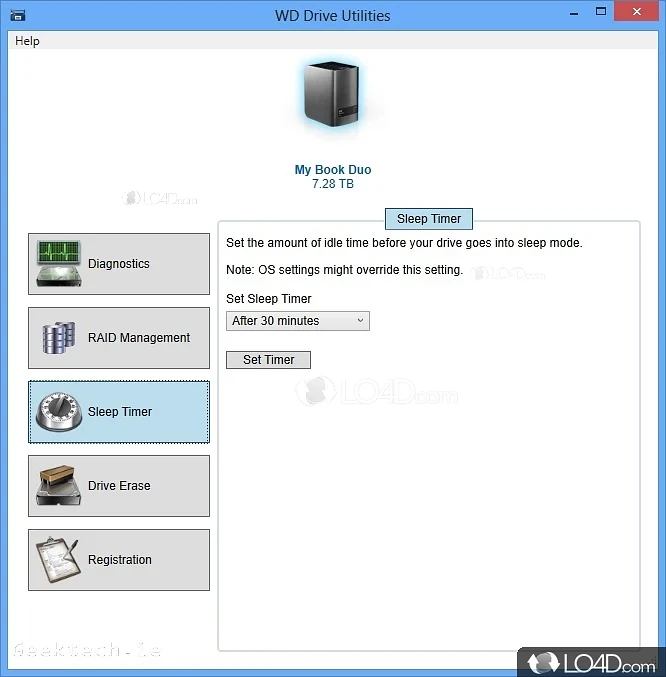
While the built-in Windows Disk Management utility can handle basic partition tasks and assign drive letters, it cannot read Western Digital's proprietary SMART data effectively or control the physical spin-down times of the magnetic disk platters. This specialized utility bridges that gap. For users managing multi-terabyte backup drives or working with hardware RAID arrays in dual-drive enclosures like the My Book Duo, the desktop app is the only official way to switch between RAID 0 for maximum data transfer speeds, RAID 1 for physical data redundancy, or JBOD for maintaining two separate storage volumes. By providing a graphical interface for these complex hardware functions, the software eliminates the need for command-line configurations or third-party partition managers.
It operates strictly as a companion to the manufacturer's own hardware ecosystem. It will not recognize internal NVMe solid-state drives, third-party external enclosures, or bare SATA hard drives connected via generic USB adapters. By keeping the interface focused entirely on Western Digital external disks, the application gives home users, photographers, and video editors a straightforward tool to wipe data securely before selling a drive, verify drive integrity after a physical drop, or silence a distracting activity LED during night-time system backups. It provides an essential layer of hardware maintenance that ensures external storage remains reliable over long periods of heavy use.
Key Features
- SMART Status Verification: The application queries the Self-Monitoring, Analysis, and Reporting Technology data directly from the drive firmware. Instead of showing raw hexadecimal values, it provides a simple pass or fail result. This immediate health check helps users identify impending mechanical failures, such as high reallocated sector counts or spin-up errors, before they lead to catastrophic data loss.
- Quick and Complete Drive Diagnostics: Users can choose between two levels of physical surface testing. The Quick Drive Test checks the internal performance records and scans major index areas to verify basic functionality in under two minutes. The Complete Drive Test performs a sector-by-sector read of the entire magnetic platter, which can take several hours on high-capacity drives but ensures no physical bad sectors exist on the disk.
- Hardware RAID Configuration: For owners of dual-drive units like the My Book Duo, the software includes a dedicated RAID management menu. Users can stripe the two internal disks together as RAID 0 for maximum transfer speed, mirror them as RAID 1 so that data is written twice for physical redundancy, or set them as JBOD to appear as two entirely separate drive letters in Windows File Explorer.
- Drive Sleep Timer Controls: External hard drives left spinning continuously will consume more power and generate excess heat. The utility includes a sleep timer menu that instructs the drive firmware to spin down the mechanical platters after a specific period of inactivity. Users can set this interval to 10 minutes, 15 minutes, 30 minutes, 45 minutes, or disable it entirely for continuous operation.
- Secure Drive Erase and Formatting: The software provides a permanent data wipe function that overwrites the existing file table. During the wipe process, users can format the drive using the native Windows NTFS file system for local PC use, or select the exFAT file system to ensure the drive can be read and written to by non-Windows operating systems without additional formatting.
- LED Indicator Management: Many Western Digital external drives feature a bright white activity light that blinks during file transfers. For users who keep their drives in a bedroom or a dark studio editing suite, the application includes a simple toggle switch to permanently disable the front-facing LED without affecting the drive's operational status or performance.
How to Install WD Drive Utilities on Windows
- Download the official Windows installer package from the Western Digital support site, which typically arrives as a compressed ZIP archive containing the main executable.
- Right-click the downloaded ZIP archive and select "Extract All" to unpack the contents into a local folder, ensuring the setup file can access its required installation assets.
- Double-click the extracted setup file to launch the installation wizard. Windows User Account Control will prompt you to grant administrator privileges, which are required to install the background hardware services.
- Review and accept the Western Digital end-user license agreement, then follow the default installation prompts. The setup will automatically place the required files in your standard Windows directories.
- Click the finish button to exit the installer. You do not need to restart your computer, but you can launch the application immediately from your Start menu or desktop shortcut.
- Connect your supported Western Digital external hard drive directly to a USB port on your computer motherboard, avoiding unpowered USB hubs that might restrict data communication.
- Wait for the application interface to refresh. The software relies on the "WD Drive Manager" background service to detect the hardware serial number and populate the diagnostic and configuration menus for your specific device model.
WD Drive Utilities Free vs. Paid
WD Drive Utilities is distributed at no cost by the manufacturer. Western Digital does not charge a licensing fee, nor does it offer a paid or enterprise tier of this specific software. The application is designed to act as a value-added hardware companion rather than a standalone commercial software product. There are no subscriptions, no locked features hidden behind paywalls, and no trial limits to worry about.
The business model relies entirely on physical hardware ownership. The application will only function if it detects a genuine, supported Western Digital external hard drive connected to the computer. If a user attempts to launch the software without a compatible device, the interface will remain locked on an "Attach a supported WD drive" screen, preventing access to any diagnostic or formatting menus. Because the development cost of the utility is effectively bundled into the retail purchase price of the physical hard drive, users have full access to all features—including the advanced RAID management tools for dual-drive enclosures—at no additional cost.
Users should note that while the diagnostic features are fully accessible, the software does not include data recovery capabilities. If the utility detects a failing drive during a SMART scan, it will not repair corrupted files or undelete lost folders. Users seeking data recovery will need to look toward third-party paid software or professional recovery services. Additionally, because the software is officially freeware, users should never pay a third-party website to download the installer or purchase a license key for this specific application.
WD Drive Utilities vs. Seagate Toolkit vs. CrystalDiskInfo
Seagate Toolkit is the direct equivalent utility for Seagate-branded external hard drives. While both applications provide basic diagnostic tools and hardware management, Seagate Toolkit places a heavy emphasis on automated file backups, folder mirroring, and syncing data across PCs. WD Drive Utilities focuses strictly on hardware health, sleep timers, and RAID array configuration, requiring users to find separate software for file-level backups. Because both tools are hardware-locked by their respective manufacturers, your choice depends entirely on which brand of external hard drive sits on your desk.
CrystalDiskInfo is an independent, open-source drive health monitoring tool that works across almost all storage brands and interfaces. Unlike the Western Digital software, which only provides a simple pass or fail grade for drive health, CrystalDiskInfo displays the exact raw hexadecimal SMART values, temperature graphs, and specific error counts. However, CrystalDiskInfo is strictly a monitoring tool; it cannot alter RAID configurations, change external drive sleep timers, or format disks.
WD Drive Utilities is the better fit for users who want a simple, vendor-supported interface to manage their specific Western Digital external enclosure without interpreting complex raw data. It is also mandatory for configuring hardware RAID on dual-drive units like the My Book Duo. CrystalDiskInfo is the superior choice for advanced users who want granular data about drive wear or need a single application to monitor a mixed ecosystem of internal and external drives from various manufacturers.
Common Issues and Fixes
- "Attach a supported WD drive" error. This occurs when the background service fails to start or the drive is not recognized. Open the Windows Services menu, locate the "WD Drive Manager" service, right-click it to select Properties, change the Startup Type to Automatic, and click Start.
- Software does not detect internal Western Digital drives. The application is programmed strictly for external USB enclosures like the My Passport and My Book series. To manage internal SATA or NVMe solid-state drives, you must download the Western Digital Dashboard application instead.
- Sleep timer settings do not apply. If the external drive continues to spin despite setting a sleep timer, Windows power settings may be overriding the hardware command. Open the Windows Control Panel, navigate to Power Options, edit your current power plan, and disable the "USB selective suspend setting."
- RAID configuration menu is missing. The RAID management tab only appears when a supported multi-drive enclosure, such as the My Book Duo, is connected. Single-drive units do not possess the necessary hardware controller for RAID, so the application hides this menu to prevent confusion.
- Cannot format drive for cross-platform compatibility. If the drive format fails, ensure no other applications are currently accessing files on the disk. For full cross-platform compatibility between Windows computers and alternative operating systems, select the exFAT file system option during the erase process rather than the default NTFS setting.
Version 2.1.5.482 — December 2025
- Expanded device compatibility to include the WD Elements AE external hard drive series.
- Implemented various internal patches to resolve minor bugs and enhance software stability.
- Optimized general performance for more reliable drive diagnostics and management.