Seagate Toolkit operates as the primary management interface for Seagate and LaCie external storage hardware connected to a Windows environment. Instead of relying entirely on manual file transfers through standard File Explorer windows, users deploy this utility to automate data protection routines, synchronize directories, and enforce hardware-level security. The application acts as a central hub for tasks that require low-level disk access, bypassing the need for generic third-party backup tools that might not interface correctly with proprietary hardware features.
The necessity of a dedicated desktop application becomes apparent when handling physical drive configurations and background monitoring. Browser-based interfaces or lightweight cloud syncing apps cannot manage AES 256-bit hardware encryption, configure dual-drive RAID enclosures, or continuously monitor specific local directories for instant mirroring. By running locally on the operating system, the application maintains a constant link to the connected hardware, ensuring that scheduled backups trigger reliably and external volumes remain locked until authenticated. This direct communication allows the software to handle physical inputs as well, such as processing media imports the moment an SD card is inserted into a compatible drive bay.
Users typically install this utility immediately after unboxing a new high-capacity external drive to establish their baseline backup rules. It replaces ad-hoc drag-and-drop habits with structured, rule-based data transfers. Whether a user needs to secure sensitive financial documents on a portable drive with a password, or a photographer wants to ensure their working directories are continuously copied to a desktop archiving drive, the software handles the background operations. It restricts its focus to the hardware ecosystem it was designed for, ensuring that specific features like custom RGB lighting or Status LED toggles function exactly as intended without requiring additional vendor utilities.
Key Features
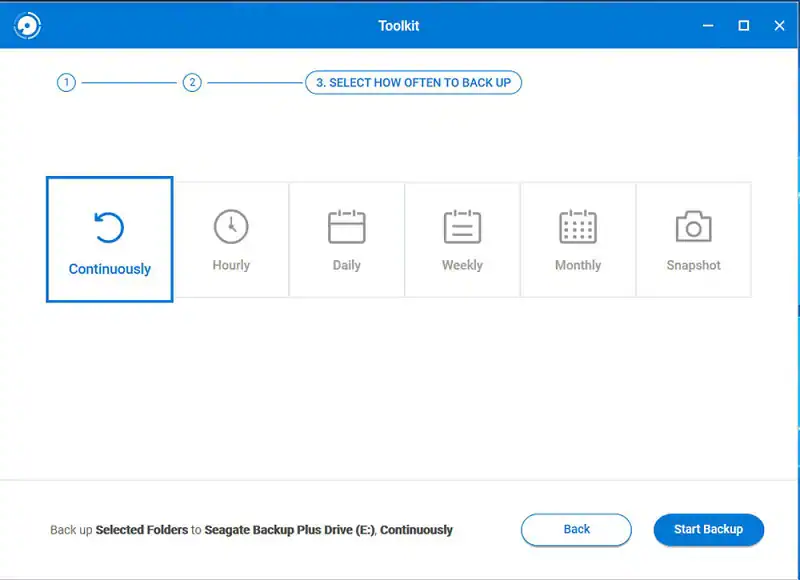
- Automated File Backup: The utility executes scheduled or on-demand data transfers from the local computer to the connected external drive. By default, the software excludes system directories and application data to save space, focusing strictly on personal documents, photos, and videos. Users utilize the "Custom" backup option to explicitly define which folders to include, and the routine runs quietly in the background based on a designated timetable.
- Mirror Folder Synchronization: This feature maintains a synchronized folder structure between the host PC and the external storage device. When a user creates a Mirror plan, adding, editing, or deleting a file in the designated local directory automatically replicates that exact change on the external drive. This two-way synchronization ensures that the target folder remains an exact, up-to-date replica of the source material.
- Seagate Secure Encryption: For drives equipped with AES 256-bit hardware encryption, the application manages all locking and unlocking protocols. Users establish a password to secure the volume, rendering the data unreadable to unauthorized parties if the drive is lost or stolen. The interface also includes options to designate specific PCs as trusted computers, which bypasses the password prompt upon connection, and provides a crypto-erase function to permanently wipe the drive and return it to factory settings.
- Hardware Status and LED Control: The application provides direct access to physical device settings that are otherwise inaccessible through native Windows menus. Users can check available storage capacity, monitor overall drive health, and toggle the physical status LED to prevent distracting blinking lights in dark rooms. For gaming-branded external drives, this section expands to include RGB lighting controls, allowing users to customize color patterns and brightness.
- RAID Setup Wizard: When connected to compatible dual-drive enclosures, particularly high-capacity LaCie desktop models, the software assists in configuring the array. The wizard walks users through formatting the enclosure as either RAID 0 for maximum read and write speeds or RAID 1 for mirrored data redundancy. This built-in tool handles the partition creation and formatting rules without requiring the user to navigate the often complex Windows Disk Management interface.
- Direct Memory Card Import: Specific external drive models feature integrated SD or microSD card readers to facilitate rapid media offloading. The application detects when a memory card is inserted and can be configured to automatically pull the files directly onto the hard drive. This hardware-to-hardware transfer bypasses the need to open multiple windows and manually drag gigabytes of raw video or image files over to the destination folder.
How to Install Seagate Toolkit on Windows
- Download the official Windows installer package from the vendor's support website, ensuring you select the correct executable for a Windows environment.
- Verify that the computer maintains an active internet connection, as the installer must contact external servers to retrieve the latest software components during the setup phase.
- Locate the downloaded executable file in your default downloads folder and double-click it to initiate the setup wizard.
- Follow the on-screen prompts to proceed through the installation, accepting the default directory path to avoid permission conflicts with background services.
- Connect a compatible Seagate or LaCie external drive to an available USB port directly on the motherboard, avoiding low-power USB hubs that might disrupt detection.
- Launch the application using the newly created desktop shortcut, or locate it within the Start menu under the vendor's folder.
- Review the initial hardware detection screen to confirm the utility recognizes the connected drive, at which point the relevant backup and security features will become visible in the main dashboard.
Seagate Toolkit Free vs. Paid
The application is a fully free utility provided by the vendor to support and manage their proprietary hardware ecosystem. There are no premium tiers, subscription fees, or paid software add-ons required to unlock the core backup and synchronization tools. Because the development and maintenance of the utility are subsidized by the physical purchase of the hard drives, users are never prompted to upgrade to a paid version within the interface.
While the software itself costs nothing, its capabilities are strictly bound to the hardware you connect. Functions like hardware encryption, RAID configuration, and RGB lighting control are dynamically displayed based on the specific capabilities of the attached drive. If you connect a basic portable drive, the interface will only display standard backup and mirror options. The utility is deliberately incompatible with third-party storage devices, and attempting to run a backup plan to an unsupported drive will result in the hardware not appearing within the target destination menu.
Occasionally, purchasing an eligible external drive includes promotional trials for third-party commercial software, such as Adobe Creative Cloud photography plans or cloud storage subscriptions like Dropbox. These offers require separate account registrations and will convert to standard paid subscriptions once the trial window expires. However, these third-party promotions are entirely separate from the desktop utility, and choosing not to activate them does not restrict any of the local backup or encryption features.
Seagate Toolkit vs. WD Discovery vs. Samsung Magician
WD Discovery operates as the primary management utility for Western Digital external drives, sharing a very similar design philosophy with Seagate's application. It handles local backup routines and hardware encryption unlocking for its respective ecosystem. However, WD Discovery places a heavier emphasis on cloud integration, offering tools to import files directly from social media accounts and third-party cloud storage providers. Users who want to bridge their online data with their local physical drives often prefer WD's approach, provided they own Western Digital hardware.
Samsung Magician is tailored for Samsung's internal solid-state drives and portable SSDs, prioritizing deep diagnostic metrics over automated file synchronization. It provides extensive health monitoring, firmware update delivery, hardware benchmarking, and over-provisioning controls. While it does manage hardware encryption for portable SSDs, it lacks the continuous folder mirroring and scheduled document backup routines found in Seagate's utility. Hardware enthusiasts focused on maintaining maximum read and write speeds rely on Magician, rather than using it as a daily file protection tool.
Seagate Toolkit is the strict requirement for users managing Seagate or LaCie external volumes, specifically when local, automated data protection is the primary goal. It is the better fit for users who want to set up a continuous two-way folder mirror or need to configure a dual-drive RAID enclosure without dealing with native operating system partition tools. Because it skips synthetic benchmarking and deep cloud account integration, it presents a much leaner interface dedicated entirely to offline file security and straightforward hardware controls.
Common Issues and Fixes
- Backups appear completely stuck at 2% progress. This behavior typically occurs during the very first full backup run because the software must catalog a massive volume of files before initiating the transfer. Leave the application running without interrupting or restarting the computer; the progress bar will advance once the cataloging phase finishes, and future incremental backups will be noticeably faster.
- The interface displays an "Unlocker device not found" error when an encrypted drive is connected. This happens when the operating system fails to mount the virtual partition containing the security prompt. Disconnect the physical USB cable, close the application completely from the Windows system tray, reconnect the drive, and manually run the unlock executable located on the virtual CD drive in File Explorer.
- The computer crashes or refuses to enter sleep mode while the external drive is plugged in. Continuous background synchronization tasks or active mirror plans can prevent the operating system from safely suspending hardware operations. Pause any active sync plans within the main dashboard or safely eject the volume using the taskbar hardware icon before closing a laptop lid or initiating a sleep state.
- The application fails to detect the connected hardware despite Windows recognizing the drive. The background Windows Management Instrumentation components required for hardware polling may have stalled. Restart the PC, verify that the USB cable is connected directly to a primary port on the motherboard, and ensure no other third-party disk management utilities are currently attempting to lock the drive for diagnostics.
Version 2.35.0.6 — October 2025
- Implemented secure validation for the installer to ensure only trusted Dynamic Link Libraries (DLLs) are loaded during setup.
- Fixed a security vulnerability that allowed the execution of unauthorized code from the current working directory (CVE-2025-9267).
- Enhanced overall application security by removing insecure path dependencies.