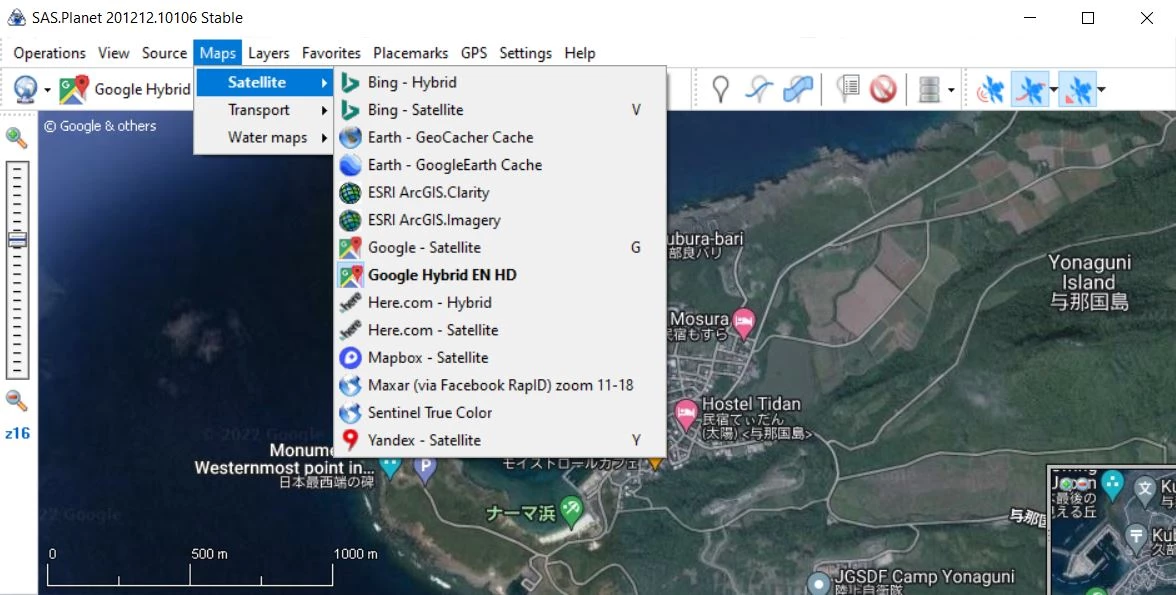
SAS Planet operates as a specialized Geographic Information System desktop application engineered for viewing, managing, and downloading detailed satellite imagery and traditional maps from a massive variety of online sources. Unlike standard browser-based map viewers that temporarily store data in hidden temporary folders, this application is built around persistent local caching. Once you view an area or define a download region, the corresponding map tiles are saved to your local storage. This mechanism allows you to build detailed offline map databases. The software caters to cartographers, marine navigators, hikers, and field researchers who operate in remote areas where internet connectivity is either unreliable or completely non-existent.
By aggregating data from dozens of providers—including Google Maps, Bing, Yandex, OpenStreetMap, and Navionics—the application eliminates the need to jump between different websites to compare terrain data. You simply select a region, choose your map source, define the exact zoom levels, and command the application to pull the tiles in bulk. The desktop environment provides the processing capacity to stitch thousands of individual image tiles into contiguous map files. These compiled maps can then be exported into formats required by dedicated hardware GPS units, marine chartplotters, or offline navigation applications. SAS Planet functions as a data extraction workstation for offline geospatial navigation.
Because it relies on raw tile extraction, the software sidesteps the limitations imposed by consumer mapping applications. You are not restricted by aggressive local cache limits. You maintain complete control over where the map data is stored on your disk, how it is projected, and what metadata is attached to the exported files. This makes the application a critical tool for anyone building custom navigation charts for specialized software like OpenCPN, OziExplorer, or Garmin mapping tools.
Key Features
- Bulk Map Tile Downloading: The application provides a dedicated Selection Manager that lets you draw boundaries over a region. Once defined, you can select specific zoom levels and command the software to download every map tile within that geometry directly to your hard drive. This bypasses browser caching limits, allowing you to stockpile map data for offline usage in remote areas.
- Multi-Source Map Aggregation: Users access dozens of map providers from a single interface, switching between satellite, terrain, and marine layers via the top toolbar. The software supports overlaying different layers, meaning you can place OpenStreetMap vectors directly over Bing satellite imagery. This layered approach helps users cross-reference terrain features that might be hidden on a single provider's map.
- Extensive Export Format Support: After caching a region, the Operations menu allows you to export the stitched map tiles into formats required by external navigation hardware. You can export directly to Garmin KMZ, OziExplorer map files, MBTiles, or raw georeferenced image formats like JPEG or PNG with projection data files. This bridges the gap between desktop data collection and field hardware deployment.
- Direct GPS Receiver Integration: By connecting a NMEA-compatible GPS receiver to your computer via USB or Bluetooth, the application reads the incoming serial data to display your real-time position directly on the cached satellite maps. The GPS tracking interface includes options to record your breadcrumb trail and keep the map centered. This turns a standard Windows laptop into an offline-capable chartplotter.
- Route and Placemark Management: The software includes built-in drawing tools to create custom waypoints, measure polygonal areas, and plot multi-segment routes. These user-generated markers are saved locally in a database and can be exported as standard GPX or KML files. When planning off-grid expeditions, you can accurately measure point-to-point distances and area perimeters based on the satellite imagery before heading out.
- Local Cache File Management: The application utilizes a transparent local cache system that you can map to a secondary internal drive or an external hard disk. The Cache Manager interface lets you view which areas you have downloaded, delete corrupted tiles, or copy your cache directory to another computer. This control ensures you never lose downloaded maps when clearing system files.
How to Install SAS Planet on Windows
- Download the official Windows ZIP archive containing the application binaries from the developer's repository.
- Create a dedicated folder on your local drive, such as C:SASPlanet, or place the folder on a portable external drive if you intend to move the map cache between different computers.
- Extract the entire contents of the downloaded ZIP archive into your newly created folder using the native Windows extraction tool or a third-party archive utility.
- Navigate into the extracted folder and locate the main executable file named SASPlanet.exe.
- Right-click the executable and select "Run as administrator" for the initial launch to ensure the application has the necessary permissions to create its local database and cache directories.
- If the Windows Defender Firewall displays a security prompt, allow the application to communicate over public and private networks, as it requires internet access to fetch map tiles from online providers.
- If the interface opens in Russian, navigate to the Options menu, select Language, and choose English to switch the application to your preferred locale.
- Click on the map source dropdown in the top left toolbar to select your first map provider and begin navigating to cache your initial tiles.
SAS Planet Free vs. Paid
SAS Planet is distributed entirely as a free, open-source application under the MIT License. Development is driven by a community of cartography enthusiasts and GIS professionals who maintain the core application and the extensive map source scripts. There are no premium tiers, pro versions, or paid add-ons associated with the official software. Every tool, from bulk tile downloading to advanced GPS integration, is fully unlocked for all users immediately upon downloading the application.
Because the software relies on third-party map providers for its data, the application does not charge you for access to satellite imagery. Users should understand that the software acts as a specialized web client. The map tiles you download are provided by external services like Google, Bing, and Yandex. The software does not place artificial limits on how much data you can cache, nor does it embed watermarks on exported charts. Your only constraints are your local hard drive capacity and the access policies of the individual map servers.
The open-source nature of the project means there are no mandatory subscriptions, required user accounts, or background licensing checks. You do not need to sign in to a central server to use the application, which is crucial for users who keep the software on offline navigation laptops. The community provides regular updates containing new map definitions, ensuring the application remains functional as online map providers update their API endpoints.
SAS Planet vs. Google Earth Pro vs. Universal Maps Downloader
Google Earth Pro is a popular desktop application that excels in rendering 3D terrain and displaying historical satellite imagery. However, Google Earth Pro restricts how its cached data can be used outside its own ecosystem; it stores its map cache in a proprietary format that cannot be easily exported for use in third-party marine software. Furthermore, Google Earth limits the size of its local cache, meaning older map data is constantly overwritten as you browse new areas, which is problematic for users needing guaranteed offline access to massive geographic regions.
Universal Maps Downloader is a commercial utility focused strictly on pulling map tiles from various online sources and saving them locally. While it shares core downloading functionality with SAS Planet, it acts primarily as a scraping tool rather than a fully-fledged Geographic Information System. It lacks advanced routing tools, direct GPS receiver integration, and the ability to natively manage stitched maps within a rich, layered interface. It requires users to pay for a license to unlock higher zoom levels and batch processing.
SAS Planet is the better fit when you require a heavy-duty, entirely free tool that bridges the gap between downloading map tiles and actually using them for field navigation. If you need to prepare multi-layered marine charts for OpenCPN, export custom chart files to a Garmin handheld GPS, or plug a NMEA receiver into a laptop to use as a real-time chartplotter, SAS Planet provides the technical depth. It gives you total control over a permanent, unexpiring local map cache without requiring paid licenses.
Common Issues and Fixes
- Problem description: Map tiles fail to load and display HTTP 404 or 403 errors. This occurs when a map provider updates their server URLs or changes API version numbers, breaking the connection script. To fix this, open the map settings dialog for the broken provider and update the map version number manually, or run the included Update script in the Maps folder to fetch the latest community-maintained map definitions.
- Problem description: The user interface displays question marks instead of readable text. This formatting error happens when the application defaults to its native Russian locale on a Windows installation lacking the appropriate Cyrillic character set. Resolve this by navigating to the top menu bar, selecting the fifth menu item from the left for settings, choosing the language option, and selecting English.
- Problem description: Exported maps appear distorted or stretched in external software. Different navigation applications require maps to be exported in specific mathematical projections, such as Mercator or Geographic. When exporting your cached tiles via the Selection Manager, ensure you select the correct projection type required by your target device, and verify that the base map provider aligns with that projection standard.
- Problem description: The application runs out of memory when stitching massive map areas. Attempting to stitch an entire country at maximum zoom levels into a single massive image file will exceed standard memory limits and crash the export process. To bypass this, break your export into smaller regional grids, or export the data into a tiled format like MBTiles or a SQLite database rather than a monolithic JPEG.
Version v.251212 — December 2025
- Added a new option to "Apply Image Correction" when exporting to MBTiles format.
- Implemented the ability to append data to an existing database during MBTiles export.
- Added support for opening MBTiles cache files directly via drag-and-drop or double-clicking in Windows Explorer.
- Introduced a new cache type based on SQLite3 (compatible with MBTiles format).
- Fixed an error that occurred when searching for placemarks even when the item was successfully found.
- Resolved a crash or error triggered when hovering over a track while holding the Ctrl key.
- Fixed an issue with background task persistence during GeoTIFF exports.
- Corrected a bug where saving a polygon from the Wikimapia layer via polygon merging would fail.