When standard uninstallation methods fail to completely clear security software from a computer, the McAfee Consumer Product Removal tool serves as the definitive cleanup utility. Modern antivirus applications embed themselves deep within the operating system, creating custom network filter drivers, background scanning services, and protected registry keys to defend against malware. Because of these deep system hooks, relying on the default Windows control panel often results in a partial removal. Leftover services continue to run in the background, consuming memory and CPU cycles while failing to provide actual security. This specialized utility forces a complete purge of all associated proprietary components, ensuring the system returns to a clean state.
The tool is designed specifically for system administrators, IT support technicians, and everyday computer users who are trying to switch their security posture. A common scenario involves a user attempting to activate Windows Defender or install a different third-party security suite, only to receive an error that conflicting security software is still present. The operating system's security center continues to detect the old software because the registry flags remain active. This standalone executable solves that exact job by forcibly unregistering the old application, halting the stubborn background processes, and erasing the hidden application data folders that standard uninstallers leave behind.
Choosing this utility over a generic third-party uninstaller is a matter of vendor-specific access. Antivirus suites employ self-protection modules, also known as tamper protection, which block unauthorized scripts from deleting their executable files or modifying their registry hives. Generic uninstallation software often triggers these self-defense mechanisms, resulting in access-denied errors and corrupted uninstalls. The official cleanup utility possesses the correct vendor certificates and cryptographic permissions to bypass these internal defenses safely, halting the scanning engines and safely dismantling the architecture without damaging the underlying Windows environment.
Key Features
- Feature Name: Tamper Protection Bypass. Antivirus engines actively protect their own directories and registry hives from modification to prevent malware from disabling them. This utility holds the official vendor certificates required to safely bypass these self-defense mechanisms, allowing it to halt active scanning services and delete protected files without triggering access-denied errors.
- Feature Name: Deep Registry Scrubbing. Security suites create thousands of keys in the Windows Registry to manage quarantine rules, update schedules, and license data. The tool targets and permanently erases the specific HKEY_LOCAL_MACHINE and HKEY_CURRENT_USER paths associated with the vendor's product line, preventing orphaned keys from slowing down the operating system or causing software conflicts.
- Feature Name: Network Filter Driver Removal. To monitor web traffic for malicious payloads, security applications install custom network drivers that sit between the operating system and the network adapter. This utility carefully unbinds and uninstalls these specialized drivers, restoring default network configurations and fixing the connection drops that often occur after a corrupted uninstallation.
- Feature Name: Security Center Unregistration. Even after deleting the main executable files, Windows may still think the original antivirus is active, which prevents the built-in Defender from turning on. The cleanup application directly communicates with the Windows Management Instrumentation repository to clear the old security status, allowing the operating system to correctly recognize new protection software.
- Feature Name: Portable Execution Workflow. The application requires no permanent installation of its own, operating entirely as a standalone executable file that runs from a local directory or external flash drive. Once the cleanup process finishes and the system reboots, the utility leaves zero footprint behind, keeping the host machine entirely free of unnecessary administrative tools.
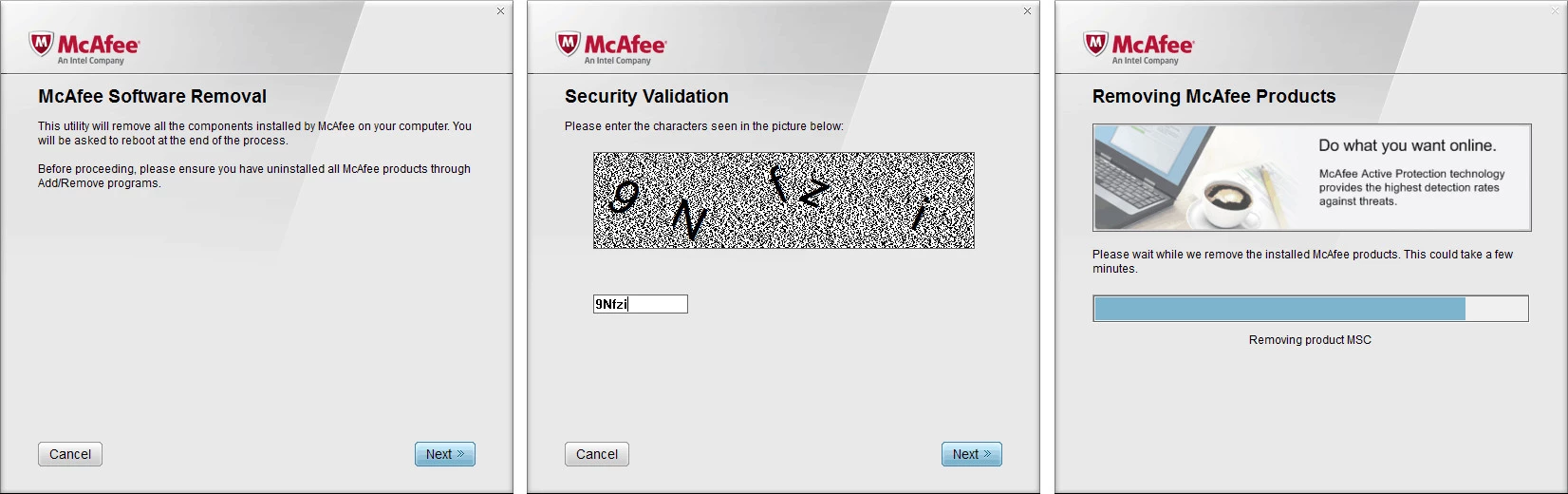
- Feature Name: CAPTCHA Security Validation. To ensure the cleanup is initiated by a human rather than a malicious script attempting to silently disable the machine's defenses, the interface includes a required security prompt. Users must manually type a case-sensitive alphanumeric code displayed on the screen before the utility allows the deletion sequence to proceed.
How to Install McAfee Removal Tool on Windows
- Download the executable file directly from the official vendor support portal to a local drive on your Windows machine, ensuring you have the latest available package to cover the newest security suites.
- Right-click the downloaded executable and select "Run as administrator" from the context menu, as the utility requires elevated system privileges to modify registry hives and stop background services.
- Click "Yes" on the User Account Control prompt to allow the application to make necessary changes to your operating system.
- Wait for the initial setup interface to load, read the End User License Agreement displayed on the screen, and click the "Agree" button to proceed to the security validation stage.
- Type the specific alphanumeric characters shown in the CAPTCHA image into the text field, paying close attention to uppercase and lowercase letters, and click "Next" to confirm human interaction.
- Allow the utility to scan the local storage drives for leftover product components, directories, and proprietary drivers, which can take several minutes depending on the speed of your storage disk.
- Click the "Restart" button once the interface displays the "Cleanup Successful" log, allowing the operating system to reboot and release any locked files that were in use during the scan.
McAfee Removal Tool Free vs. Paid
The McAfee Consumer Product Removal tool is distributed entirely as a free utility by the vendor. It exists specifically as a technical support mechanism to assist users in managing their software environments. There are no premium tiers, paywalls, or feature restrictions hidden behind a subscription model. Anyone experiencing uninstallation issues can access the full capabilities of the executable without providing payment information or creating a user account.
Because the software serves a single maintenance function rather than acting as an ongoing service, it does not utilize trial periods or licensing limitations. Users whose original antivirus subscriptions expired months or years ago can still download and utilize the cleanup utility without penalty. The vendor provides this unrestricted access primarily to reduce the volume of incoming technical support tickets related to broken installations and software conflicts.
There are no enterprise or professional variants of this specific cleanup executable. IT administrators and home users download the exact same file to perform the exact same system purge. The application does not bundle third-party software, does not display advertisements, and does not push upsell prompts during the removal process, maintaining a strict focus on system remediation.
McAfee Removal Tool vs. Revo Uninstaller vs. Norton Remove and Reinstall Tool
Revo Uninstaller is a broad, third-party system utility engineered to monitor and remove almost any software installed on a Windows PC. It works by scanning the hard drive and the registry for leftover files associated with thousands of different applications, rather than focusing on one specific vendor. Users should choose Revo Uninstaller when they want a universal program to manage all their desktop applications, force-uninstall stubborn video games, or track new software installations in real-time to log exact file changes.
The Norton Remove and Reinstall Tool operates on the exact same technical principle as the McAfee cleanup utility, but it is strictly engineered for Symantec and Norton security products. It targets proprietary Norton registry strings, specific quarantine folders, and custom network drivers that generic tools ignore. This is the correct choice only when a user needs to repair or completely erase corrupted Norton 360 or Norton AntiVirus installations, as it has no effect on other security brands.
The McAfee Removal Tool is the correct choice when specifically dealing with corrupted software from its own vendor ecosystem. Because modern security suites treat unauthorized uninstallation attempts as malware attacks, third-party options like Revo Uninstaller often fail to delete active security drivers and trigger access-denied errors. The official vendor utility possesses the exact cryptographic certificates required to instruct the local services to stand down, making it the most reliable method for safely dismantling the architecture without damaging the host operating system.
Common Issues and Fixes
- Incomplete Uninstallation log error. The interface may display a "Cleanup Unsuccessful" message at the end of the process if certain core files are actively locked by the operating system. To fix this, restart the computer, boot into Windows Safe Mode, and run the utility again so the interfering background processes remain disabled during the scan.
- CAPTCHA validation loop. Users frequently get stuck on the security validation screen because the application continually rejects their text input. The security CAPTCHA is strictly case-sensitive, so you must verify that Caps Lock is disabled and type the exact combination of uppercase and lowercase letters shown in the generated image.
- Administrator credentials requested. If the parental Family Protection modules were previously active on the machine, the cleanup sequence will halt to prevent unauthorized users from removing the software. You must enter the specific administrator username and password tied to the original Family Protection account to authorize the deletion.
- Browser extensions remain active. After finishing the process and restarting the computer, users may notice that WebAdvisor still appears in their web browser toolbars. The cleanup executable specifically targets core desktop security drivers, meaning you must remove the WebAdvisor add-on manually through your specific web browser's extension manager.
- Missing administrator privileges. Double-clicking the executable normally can cause the process to crash silently or fail to clear registry strings because it lacks sufficient system permissions. Always launch the application by right-clicking the file and selecting "Run as administrator" to ensure it has the authority to modify restricted Windows directories.
Version Latest — 2025
- Expanded compatibility to detect and remove the latest McAfee consumer product releases.
- Enhanced cleanup algorithms to eliminate stubborn residual files and registry keys more effectively.
- Optimized removal process for better stability on the newest Windows 10 and 11 updates.