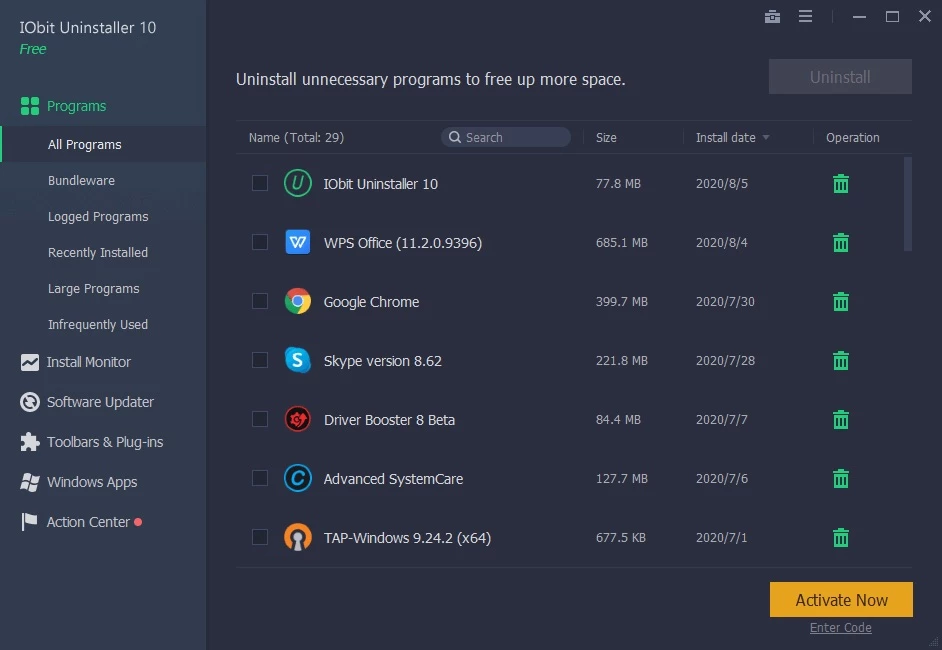
Standard Windows removal methods often leave behind invisible traces that accumulate over time, clogging storage drives and creating unnecessary system drag. When a user clicks uninstall in the native control panel, the operating system merely executes the vendor-provided uninstaller script. If that script is poorly written, corrupted, or intentionally designed to leave background tracking services intact, the host machine retains orphaned registry keys, empty application folders, and dormant scheduled tasks. Over months of usage, these lingering remnants scatter across critical directories such as the local application data folders, roaming profiles, and the deeply nested branches of the Windows registry. IObit Uninstaller Pro is a dedicated desktop application engineered to intercept and completely clear out these remnants, ensuring that unwanted software is permanently eradicated from the local disk environment without requiring manual intervention.
For system administrators, IT technicians, and everyday users who frequently test new applications, manual cleanup of the file system is inefficient, tedious, and risky. Complex software suites, aggressive antivirus engines, and specialized gaming clients often embed themselves deeply into the operating system architecture. This utility solves that concrete problem by actively scanning the host machine immediately after a standard removal finishes. It identifies lingering shared library files, forgotten cache data, and persistent browser toolbars that attempt to hijack search routines. By shifting the workload from manual folder deletion to an automated scanning engine, it provides a cleaner baseline for the operating system to operate, preventing the gradual slowdown commonly associated with aging Windows installations.
Choosing a dedicated desktop client over a lightweight portable script offers distinct advantages for ongoing workstation maintenance. A persistent application can run background installation monitors that track incoming registry modifications in real time, creating an exact map of where a new program deposits its files. This continuous monitoring ensures that if an application needs to be removed months later, the uninstaller knows exactly which directories to target without relying on heuristics or guesswork. It directly addresses the workflow of users who demand strict control over their disk space, providing a centralized dashboard to oversee application health, manage browser add-ons, and execute batch removals with precision.
Key Features
- Install Monitor: This utility tracks system modifications in real time by logging every registry entry and folder path created when a new application is deployed. By maintaining a strict database of these incoming file locations, it guarantees a perfect structural rollback when the user eventually decides to remove the program, eliminating the guesswork of finding scattered cache data.
- Force Uninstall: Designed specifically for stubborn applications that refuse to close or present corrupted native uninstaller scripts, this tool forcibly terminates locked background processes. It bypasses the standard Windows removal routine entirely, manually isolating the targeted application directory and shredding the locked files from the storage drive.
- Leftover Cleanup: Immediately following a standard program removal, the scanning engine searches the hard drive for orphaned files. It targets lingering cache data in hidden system folders and obsolete entries in the registry, presenting a detailed list of residual items slated for deletion before permanently clearing them from the machine.
- Browser Extension Management: The application aggregates toolbars, search plugins, and add-ons across major web browsers into a single, unified dashboard. Users can identify malicious extensions that alter home pages or inject advertising, stripping them out without having to navigate multiple browser-specific settings menus or dive into profile directories.
- Software Health: This diagnostic panel evaluates currently installed applications for outdated builds, unnecessary background permissions, and conflicting startup tasks. It allows users to block unwanted notification prompts from third-party software and execute direct version updates to patch known security vulnerabilities in out-of-date tools.
- Stubborn Program Database: The application incorporates a continuously updated repository of known difficult software, such as aggressive security suites or deeply integrated virtualization tools. The utility cross-references this database to apply specific, tailored removal scripts that bypass the unique defense mechanisms of these hard-to-delete programs.
- Batch Uninstallation: Instead of removing programs one by one and waiting for individual confirmation dialogs, users can check multiple boxes next to target applications. The utility sequentially processes the entire queue, executing the removal scripts in the background and batching the final leftover cleanup into a single, uninterrupted operation.
How to Install IObit Uninstaller Pro on Windows
- Download the official Windows installer package directly from the vendor's primary website to ensure you receive the most current security certificates and core files.
- Launch the setup executable and approve the User Account Control prompt to grant the necessary system privileges required for deep registry monitoring and file deletion.
- Select the custom installation option on the initial setup screen to define your preferred local drive path, rather than automatically accepting the default program files directory on the primary system drive.
- Review the subsequent setup screens meticulously to uncheck any bundled software offers, such as secondary system optimizers or virtual private network clients, ensuring only the core removal utility installs.
- Click the final confirmation button to extract the executable files, build the local program directories, and register the required background monitoring services with the operating system.
- Open the application from the newly created desktop shortcut and navigate to the license activation menu to enter your subscription code, unlocking the premium automated toolset.
- Allow the utility to perform its initial background scan of the local storage drive, which will populate the primary dashboard with categorized lists of large programs, browser plugins, and recently installed software.
- Configure your basic preferences in the main settings panel, ensuring that the automated System Restore point creation feature is toggled on before attempting your first deep disk cleanup.
IObit Uninstaller Pro Free vs. Paid
The developer structures this utility across two distinct tiers: a standard free edition and a premium Pro tier. The free version functions as a capable entry-level removal tool, allowing users to execute standard program uninstalls, delete basic leftover folders, and perform manual batch removals. However, it requires significant manual intervention, meaning users must manually trigger deep registry scans and actively review leftover file lists after every single uninstallation. The free tier operates effectively as a standalone cleaner but lacks the background installation monitoring tools required to map out complex software deployments automatically.
The Pro tier operates strictly on a paid subscription model, typically priced between $13 and $20 annually, depending on whether the user selects a single-machine license or a bundle covering up to three personal computers. Unlike traditional software that offers a perpetual license, this tool requires an active yearly subscription to maintain access to its advanced background services. Purchasing this annual subscription activates the real-time Install Monitor, which silently logs incoming file paths during new software installations to ensure flawless future removals. It also completely automates the leftover cleanup process, bypassing the manual confirmation prompts that interrupt the workflow in the free version.
Furthermore, the paid license grants access to the one-click software updater, which automatically downloads and applies patches for outdated third-party applications without requiring the user to visit external vendor websites. Free users will encounter interface prompts encouraging them to upgrade to the premium tier, whereas Pro users receive an ad-free interface, direct technical support, and automated background updates for the duration of their active subscription period.
IObit Uninstaller Pro vs. Revo Uninstaller Pro vs. Geek Uninstaller
Revo Uninstaller Pro is heavily focused on granular technical control, manual oversight, and cautious system modification. It relies on a specialized targeting feature called Hunter Mode and heavily mandates the creation of full registry backups before executing any removal commands. System administrators who want to manually inspect every single registry key before it gets deleted often prefer Revo Uninstaller Pro, as it prioritizes manual oversight over automated cleaning algorithms. It is the tool of choice when handling deeply corrupted software environments where automated deletion might inadvertently remove critical shared system files, offering a drier, more technical interface built for experts.
Geek Uninstaller is an ultra-lightweight, portable application that consists of a single executable file requiring no traditional installation process. It caters specifically to users who want a fast, distraction-free interface dedicated entirely to force-removing broken applications without adding any new background services to their machine. When an IT technician needs to scrub a stubborn program from a computer via a USB flash drive without navigating complex menus, monitoring software health, or dealing with active background services, Geek Uninstaller provides the most direct and efficient workflow available.
IObit Uninstaller Pro is the better choice for users who want an automated, visually organized dashboard capable of managing both batch uninstalls and routine software updates simultaneously. Its interface automatically sorts installed programs by size, usage frequency, and installation date, making routine disk cleanup much faster for users who do not want to parse raw registry data. It excels when the primary goal is ongoing workstation maintenance, active installation tracking, and bulk application removal in a highly visual environment, bridging the gap between deep technical cleaning and everyday accessibility.
Common Issues and Fixes
- Unexpected bundled software during installation. The standard setup wizard frequently includes optional companion applications that are pre-selected by default. To avoid installing these extra utilities, always choose the custom installation path and manually uncheck the boxes for any secondary system optimizers or network tools before proceeding with the setup.
- Accidental removal of shared application files. Running an aggressive leftover scan can sometimes identify and delete dynamic link libraries required by other programs from the same developer. To prevent breaking active software, verify that the application's built-in System Restore point creation feature is enabled in the settings menu before executing a deep clean, allowing you to roll back if necessary.
- Intrusive desktop notifications and promotional pop-ups. The background services periodically display alerts recommending system scans or other vendor products, which can interrupt daily tasks. Users can silence these interruptions by opening the general settings menu, navigating to the notifications tab, and explicitly disabling all promotional alerts, or by disabling the background update task entirely in the Windows Task Scheduler.
- Antivirus flagging the uninstaller as a potentially unwanted program. Because the utility aggressively modifies the Windows registry and terminates background processes, some security suites may incorrectly quarantine its core files. To resolve this false positive, add the installation directory to your antivirus exclusion list before launching the application for the first time.
- Inability to remove the uninstaller utility itself. Active background monitoring services can lock the primary executable, preventing the application from being uninstalled via the native Windows control panel. To resolve this, boot the operating system into Safe Mode to halt all non-essential third-party services, then remove the program files manually or utilize an independent portable removal tool.
Version 15.2.0.2 — December 2025
- Enhanced scanning engine to identify and remove a wider range of residual files and leftovers.
- Optimized Software Health algorithms to more accurately match and manage software permissions.
- Resolved an issue where uninstalling certain Steam games would occasionally fail.
- Introduced support for the Indonesian language.
- Fixed known bugs to improve overall program stability.