When standard removal methods fail to delete your antivirus software, Avast Clear serves as the specialized cleaning utility designed to finish the job. Antivirus programs often integrate deeply into the operating system to prevent tampering, which can sometimes make them difficult to remove through the Windows Control Panel alone.
Because security software must protect itself against malicious scripts that attempt to disable it, it relies on strict self-defense modules, custom network driver interface specification (NDIS) filters, and kernel-level drivers. If the primary uninstaller becomes corrupted, a background update stalls, or a scheduled task hangs, these same protective measures turn against the user, blocking any attempt to uninstall the application. Even attempting to stop the background services through the Windows Services console will fail because the software's self-defense mechanisms actively reject unauthorized stop commands.
Users typically turn to this utility when they encounter specific roadblocks during system maintenance. The most common trigger is the persistent 'setup is already running' error dialog, which prevents standard uninstallation even if no setup window is visible. Other scenarios include a corrupted installation that leaves background services running, or the need to completely scrub leftover files before installing a different security product to prevent driver conflicts. Attempting to manually delete these locked directories usually results in permission denied errors, as the operating system recognizes the files as protected active processes.
This standalone executable provides a direct override to these system-level locks. By operating outside the standard Windows environment and forcing a system reboot into Windows Safe Mode, the utility prevents the security software's self-defense drivers from loading at startup. Once inside Safe Mode, it safely targets the exact registry keys, hidden application data folders, and core program files associated with the vendor's products. This exact targeting ensures that no conflicting residue remains on the local drive, paving the way for a clean reinstallation or a permanent switch to alternative desktop security tools.
Key Features
- Safe Mode Reboot Prompt: The utility actively prompts users to restart their machine into Windows Safe Mode right from the initial interface. By intercepting the standard boot process, it ensures that the active security drivers and self-defense mechanisms do not load, granting the tool unrestricted access to locked system files without interference.
- Targeted Residual Cleanup: Unlike standard removal routines that only look for generic uninstallation strings, this tool specifically hunts down hidden directories such as the protected C:ProgramDataAvast Software folder. It wipes orphaned registry entries, background service registrations, network filters, and leftover cache files that typically remain after a standard uninstallation attempt fails.
- Automated Product Detection: Upon launch, the software scans the local system and automatically populates its drop-down menu with the currently installed product variants. Whether the machine is running Avast Premium Security, Avast Free Antivirus, or Avast One, the utility identifies the specific version to ensure it applies the correct removal parameters.
- Custom Path Targeting: If the original security software was deployed to a non-standard directory outside of the default C:Program Files path, the interface allows users to manually specify the target folder. Clicking the browse button lets administrators point the cleaner exactly where the custom files reside, ensuring no custom directories are overlooked.
- Setup Error Override: The tool is explicitly programmed to bypass the frequent 'setup is already running' error that plagues standard uninstallation attempts. It ignores false flags from stalled background updates or hanging setup tasks, forcing the removal sequence to execute regardless of the software's current operational state.
- Offline Operation: The executable functions entirely independent of an internet connection once downloaded to the local drive. This local execution is critical for troubleshooting, as users often need to remove corrupted security tools that have inadvertently blocked network access or disrupted network adapter drivers during a failed update.
How to Install Avast Clear on Windows
- Download the standalone Windows executable package from the official vendor repository and save it to a local disk, such as the default Downloads directory.
- Right-click the downloaded executable file and select the 'Run as administrator' context menu option to grant the utility the elevated system privileges required for core file modification.
- Click 'Yes' on the User Account Control dialog box to allow the program to bypass standard user restrictions and initialize its pre-boot interface.
- Review the initial screen warning and click the specific button labeled 'Reboot' on the 'Reboot to safe mode' tile to begin the specialized startup sequence.
- Wait for the computer to restart and load into Windows Safe Mode. Because Safe Mode only loads essential drivers, the desktop resolution may appear lower than usual; the utility interface will automatically appear once the minimal desktop environment loads.
- Verify the detected software variant in the drop-down menu and confirm that the listed program directory and data directory paths match your actual installation locations.
- Click the 'Uninstall' button at the bottom of the window to initiate the deep cleaning sequence, and wait for the progress bar to complete the removal of all background files.
- Click the final 'Restart computer' button on the confirmation screen to exit Safe Mode and boot the machine back into your standard Windows desktop environment.
Avast Clear Free vs. Paid
Avast Clear is provided as a strictly freeware utility by the developer. It is distributed without any hidden premium tiers, feature locks, or subscription requirements. Because its sole purpose is to serve as a specialized support tool for users attempting to fix corrupted installations or remove vendor software, the company offers the complete functionality entirely free of charge.
Users do not need to log into an account, provide an email address, or input a license key to activate the cleanup process. The utility does not contain any trial limits, artificial export delays, or usage watermarks. It is a single-purpose administrative tool designed to do one specific job without gating any troubleshooting capabilities behind a paywall. There are no registration prompts, and the interface never displays advertisements or cross-promotional banners for other software products.
There are no paid add-ons or enterprise tiers of this specific utility. While the antivirus products it uninstalls often operate on a freemium or paid subscription model, the removal mechanism itself is open to all users. This approach ensures that even users who have let their premium security subscriptions expire can still cleanly remove the inactive software from their operating system without being forced to renew just to access the uninstaller.
Avast Clear vs. Revo Uninstaller vs. IObit Uninstaller
Revo Uninstaller operates as a broad-spectrum software removal application designed to clean up leftover registry keys and scattered application data for nearly any program on a desktop computer. Users turn to Revo when they need a centralized dashboard to track installations, manage startup items, and force-remove standard software that leaves clutter behind. However, because Revo relies on standard Windows administrative permissions, it frequently struggles to bypass the kernel-level self-defense modules built into aggressive security software, often resulting in incomplete uninstalls or access-denied errors.
IObit Uninstaller provides similar multi-purpose system cleaning capabilities, with a strong focus on batch uninstallation, browser extension management, and identifying bundled adware. It is effective for routine system maintenance and stripping out stubborn toolbars or outdated generic applications. Like Revo, IObit Uninstaller operates within the standard Windows boot environment; if a corrupted antivirus program refuses to terminate its core background processes, IObit will generally fail to delete the active files, leaving the user stuck with a broken security deployment.
Avast Clear is the better choice specifically when dealing with Avast-branded software. While it cannot be used to manage general desktop applications or browser extensions like Revo or IObit, it is hardcoded to recognize the exact proprietary file paths, hidden drivers, and protected registry keys of its target products. By forcing the operating system to reboot into Windows Safe Mode, it completely sidesteps the self-defense mechanisms that block third-party tools, ensuring a complete removal of the targeted security software without running into locked file errors.
Common Issues and Fixes
- System remains stuck in a Safe Mode boot loop. Press the Windows key + R to open the Run dialog, type 'msconfig', and hit Enter. Navigate to the Boot tab, uncheck the 'Safe boot' option, apply the changes, and restart the computer manually to return to the normal desktop environment.
- The utility fails to detect the installed antivirus software automatically. If the software was installed in a custom location rather than the default directory, use the browse button within the tool's interface. Manually navigate to the exact folder path where the program files reside, then proceed with the uninstallation.
- The tool crashes or refuses to open when launched directly from the standard desktop. Active security modules might be aggressively blocking the executable. Manually restart the computer into Windows Safe Mode first using the advanced startup options, navigate to the Downloads folder, and run the executable directly from there to prevent background interference.
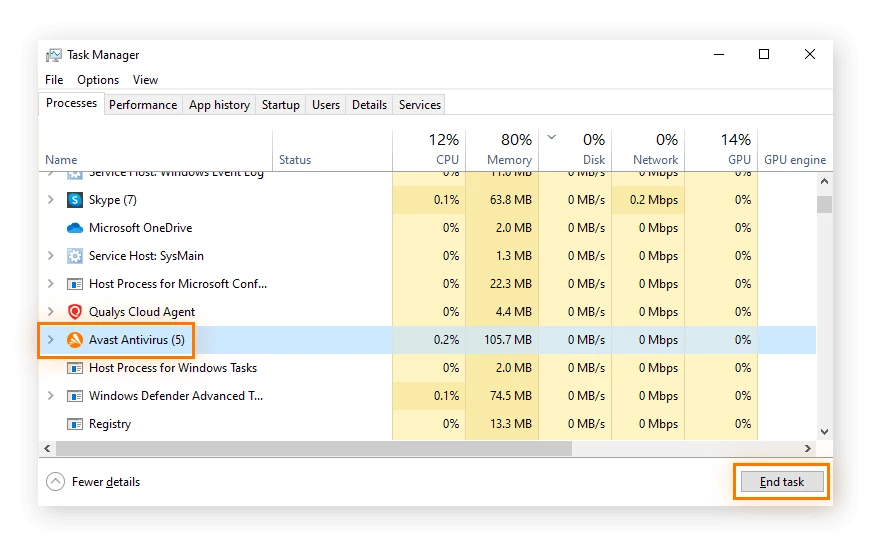
- Permission errors occur when trying to delete the executable after the process is complete. A background monitoring task may still be holding the file open in memory. Open the Windows Task Manager, end any active processes related to the uninstaller, and then delete the file normally, or simply restart the computer one final time before moving the file to the recycle bin.
Version 25.12.10659 — December 2025
- Updated removal definitions to fully support the uninstallation of the latest Avast Antivirus version 25.12 releases.
- Enhanced the underlying setup engine to improve stability and performance during the removal process in Safe Mode.
- Fixed a specific issue where the crash dump reporting tool (AvDump) failed to initialize correctly.
- Resolved minor localization errors that caused incorrect text characters to appear in the interface for certain languages.