Quick CPU Pro functions as a hardware diagnostics and processor management utility designed for Windows operating systems. Modern processors rely on complex algorithms to balance energy consumption and computational output, often putting idle cores to sleep or dropping clock speeds to conserve power. While these default operating system directives work for general web browsing and office tasks, they introduce latency penalties that interfere with specialized workloads. When a dormant core is forced to wake up to handle a new thread, the delay causes micro-stutters in 3D rendering, frame drops in competitive gaming, and audio dropouts in digital audio workstations. This desktop application intercepts standard operating system power management, giving administrators direct control over hardware states, frequency limits, and voltage delivery.
The interface bypasses standard Task Manager metrics to interact directly with core parking algorithms and performance states. Users can override default directives to ensure that all logical processors remain active, preventing the hardware from downclocking during momentary lulls in activity. Locking the frequency prevents the continuous shifting between base and boost clocks, delivering a flat, predictable line of computational throughput. This level of granular tuning is critical for tasks that require strict timing consistency rather than just burst performance. Because these adjustments happen at the hardware interface level, the desktop client provides an immediate visual response through detailed telemetry graphs, plotting package temperatures and thread utilization alongside the active voltage parameters.
Running a dedicated desktop client for hardware configuration replaces the need to repeatedly boot into the BIOS to test different voltage offsets or power limits. The software reads specific sensor data in real time, translating complex registry keys and kernel-level power profiles into visual sliders. Gamers utilize it to force maximum performance profiles during heavy engine loads, while laptop users rely on it to manually restrict clock speeds and lower temperatures when operating on battery power. By centralizing power plan management, thermal monitoring, and frequency scaling into a single dashboard, the utility bridges the gap between software scheduling and physical processor execution.
Beyond active modification, the utility functions as an essential diagnostic dashboard for identifying thermal bottlenecks. When a computer runs demanding applications, the processor generates significant heat that must be dissipated by the cooling solution. If the cooling system fails to keep up, the hardware automatically engages thermal throttling, dropping clock speeds to prevent physical damage. Without a detailed monitoring interface, users only experience this as sudden lag or reduced frame rates. The software visualizes this exact interaction, displaying the precise temperature threshold where frequency drops occur. By correlating package temperature with active power draw, administrators can determine whether a machine requires physical maintenance, such as reapplying thermal paste, or if adjusting the fan curves and applying a minor undervolt will resolve the thermal throttling entirely.
Key Features
- CPU Core Parking Management: The application includes a dedicated slider that overrides default operating system instructions regarding core sleep states. Setting the parking index to 100 percent forces all physical and logical cores to remain awake, which prevents latency spikes when shifting workloads across threads.
- Frequency Scaling and Turbo Limits: Users can dictate the minimum and maximum processor performance states to control how aggressively the hardware boosts its clock speed. Adjusting these parameters prevents unwanted downclocking during idle moments, ensuring consistent frame delivery in real-time rendering environments.
- FIVR Control and Undervolting: The utility exposes the Fully Integrated Voltage Regulator on supported Intel processors, allowing administrators to apply negative millivolt offsets. Reducing the voltage supplied to the processor core and cache lowers overall thermal output, which prevents thermal throttling during sustained multi-core processing tasks.
- System Power Plan Configuration: The software acts as a visual editor for hidden Windows power parameters that typically require command-line access. Administrators can create, clone, edit, and apply custom power profiles directly from the interface, assigning specific core behaviors for battery operation versus wall power.
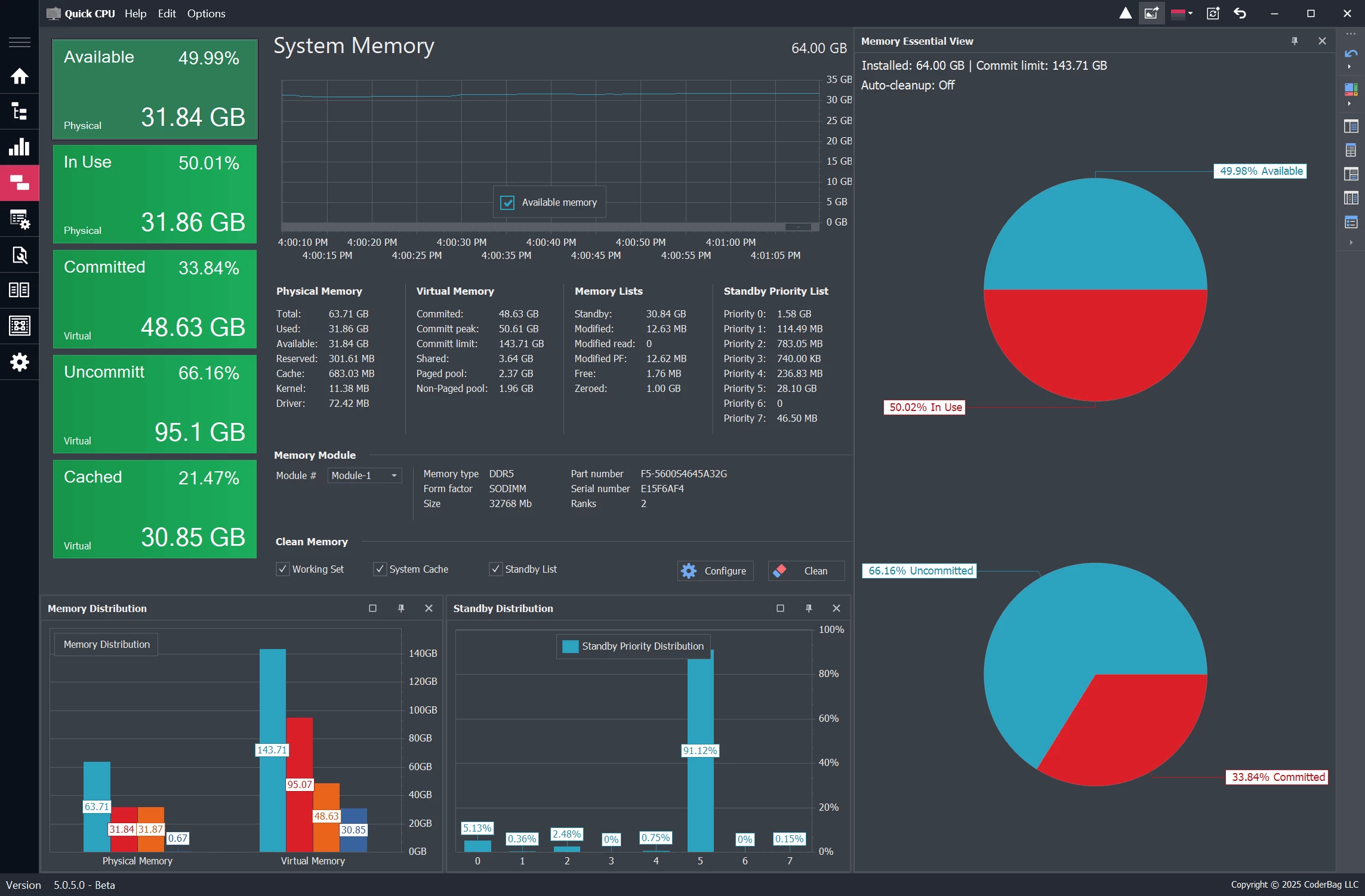
- Real-Time Telemetry and Sensor Tracking: The main dashboard visualizes hardware metrics through continuous line charts and data bars. The interface actively tracks package temperatures, individual thread utilization, memory consumption, and active power draw in watts to help users identify thermal limits immediately.
- Integrated Stress Testing Module: A built-in load generation tool allows users to apply synthetic stress to specific logical processors or the entire processor package. Running this module helps validate the stability of new voltage offsets or frequency limits before deploying the machine for production workloads.
How to Install Quick CPU Pro on Windows
- Verify that your operating system has Microsoft .NET Framework 4.7.2 or later installed, as the desktop application requires these runtime libraries to render its interface and communicate with hardware sensors.
- Download the official Windows installer executable directly from the developer website to ensure you receive the unmodified application package.
- Launch the downloaded setup file and accept the User Account Control (UAC) prompt, acknowledging that the application requires administrative privileges to modify low-level hardware states.
- Review the End User License Agreement and select a destination folder on your local drive, keeping the default Program Files directory to ensure correct registry pathing for system power plans.
- Follow the remaining installer prompts to copy the files, create a desktop shortcut, and complete the setup process.
- Launch the application from the Start menu and carefully read the initial warning prompts regarding system stability, voltage limits, and hardware safety before modifying any default sliders.
Quick CPU Pro Free vs. Paid
The core performance tuning engine operates under a freemium model where all major hardware modifications are available at no cost. The free tier allows users to adjust core parking, manage frequency scaling, edit system power profiles, and apply voltage offsets. Single-machine users and gamers who only need to configure their hardware limits and monitor temperatures can rely entirely on the free tier without hitting software restrictions on processor performance.
For professional diagnostics and workflow reporting, the developer offers a Pro license priced at $27 for a one-year term. This paid tier unlocks the ability to export telemetry data into HTML, PDF, DOCX, RTF, and Excel formats, which is necessary for hardware reviewers or IT administrators documenting system stability. The Pro tier also includes 35 additional user interface themes, personalized data bars, a dedicated chart-only viewing mode, and allows activation on up to three separate computers.
A Pro-Extended license is available for $49, which extends the subscription duration to a three-year term. This tier includes all the data export formats, customized viewing modes, and interface themes of the standard Pro license, but increases the installation allowance to five computers. Both paid tiers focus on reporting and visual customization rather than restricting the actual processor tuning capabilities.
Quick CPU Pro vs. Intel Extreme Tuning Utility vs. ParkControl
Intel Extreme Tuning Utility (XTU) is a proprietary diagnostic interface built specifically for unlocked Intel processors. It provides low-level control over multiplier ratios, memory timings, and voltage limits natively supported by the manufacturer. However, it does not function on AMD hardware, and it offers less control over standard operating system power profiles, making it strictly an overclocking tool rather than a general power management scheduler.
ParkControl by Bitsum is a highly focused, lightweight system tray utility dedicated strictly to toggling core parking and frequency scaling tied to specific power profiles. It is designed for users who want to disable core parking with a single click without navigating a complex dashboard of sensor data. It lacks the deep telemetry graphs, memory management, and FIVR voltage controls found in larger tuning suites.
Quick CPU Pro acts as a middle ground that combines the operating system scheduling of ParkControl with the hardware telemetry of XTU. It works across different hardware manufacturers, allowing users to manipulate standard Windows power profiles while simultaneously tracking precise package temperatures and wattage limits. It is the logical choice for users who need detailed hardware sensors and OS-level parking controls in the same interface.
Common Issues and Fixes
- System crash or Blue Screen of Death (BSOD) after applying a voltage offset. This happens when the processor receives too little voltage to maintain its current clock frequency. Restart the computer, reset the active power profile to the Windows default, and apply a smaller negative millivolt offset within the FIVR control panel.
- Custom frequency settings revert after a system restart. This occurs when proprietary motherboard software overrides the active operating system power profile during boot. Ensure that your custom profile is set as the active default inside the utility, and disable conflicting vendor control centers like Armoury Crate or Dragon Center.
- Application interface fails to launch or generates a startup error. The interface depends on specific Windows runtime libraries to execute properly. Download and install the Microsoft .NET Framework 4.7.2 package, then restart the machine and run the executable as an administrator.
- FIVR control options are grayed out and cannot be adjusted. This is expected behavior on locked processors or AMD architectures that do not expose low-level voltage registers to the operating system. You can still manipulate OS-level core parking and frequency scaling, but direct hardware undervolting remains disabled.
Version 6.1.0.0 — December 2025
- Enhanced CPU Stress Test Module: Improved stability testing capabilities with new options for per-core and per-thread load selection to validate system reliability under specific conditions.
- Advanced Performance Controls: Updated Intel Speed Shift and FIVR (Fully Integrated Voltage Regulator) settings for more precise power and frequency management.
- Expanded CPU Support: Added optimization profiles and compatibility fixes for the latest generation of Intel and AMD processors.
- System Stability Improvements: Fixed minor bugs related to power plan application and enhanced real-time monitoring accuracy.