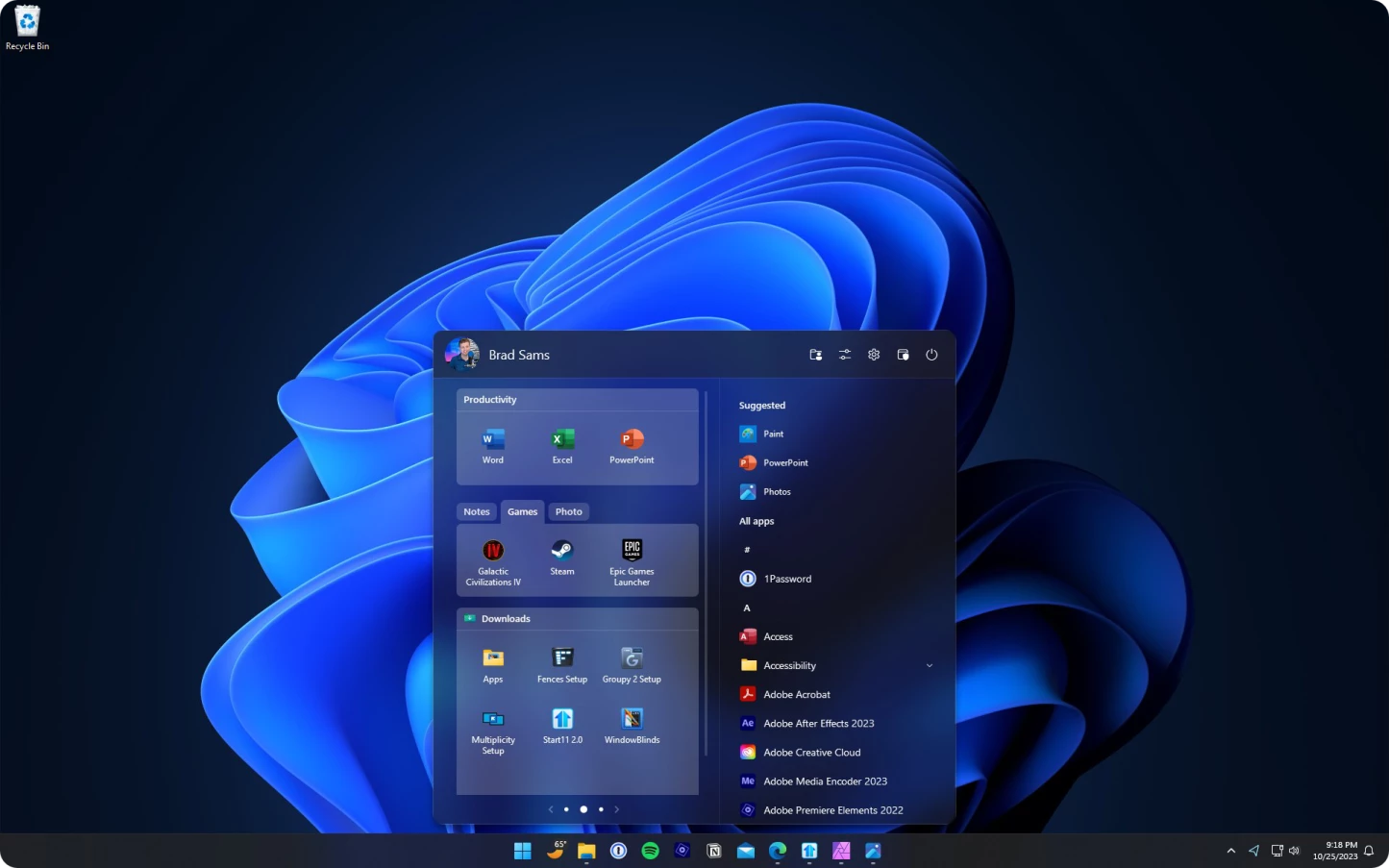
The default desktop environment provided by recent Microsoft operating systems restricts graphical user interface modifications, forcing operators to use a centered application dock and a simplified launcher. Stardock Start11 replaces these locked system components with a configurable graphical shell interface. By bypassing the default system constraints, this desktop application allows administrators and power users to manually define how applications are grouped, where system icons are placed, and how local files are indexed for retrieval. It serves as a direct graphical override, injecting its own rendering logic into the operating system's desktop shell to restore missing layout options and introduce new organizational methods without requiring manual registry edits.
Because configuring the desktop shell requires deep system hooks, a native desktop application is the technical method required to alter the operating system's default visual behavior. Web-based tools and portable scripts cannot manipulate the persistent taskbar process. This utility installs a background service that actively intercepts shell commands, translating standard user inputs into customized visual layouts. Users rely on this capability to construct environments tailored to specific computing habits, such as separating instances of command-line terminals across multiple monitors, or building nested folder hierarchies directly within the application launcher. It eliminates the reliance on web-heavy search suggestions, prioritizing local drive indexing for faster offline document retrieval.
In enterprise and multi-workstation deployments, maintaining a consistent graphical interface reduces support requests and operational friction. System administrators utilize this software to force a standardized desktop layout across entirely different hardware configurations. The application supports exporting configuration files, meaning a single visual profile can be distributed across an entire network. Rather than forcing employees to relearn interface navigation after an operating system upgrade, the IT department can deploy a layout that mimics older operating systems, ensuring immediate operational continuity and reducing the time spent searching for buried administrative utilities.
Key Features
- Taskbar Repositioning and Alignment: The software overrides the default horizontal lock, allowing the main system taskbar to be docked vertically on the left or right edge of the display. This vertical alignment is fully supported across multi-monitor setups, providing dedicated vertical application docks for secondary screens while keeping the primary display clear of horizontal obstructions.
- Classic Layout Recreation: Users can select from multiple structural frameworks, including visual replicas of the Windows 7 list style and the Windows 10 tile grid. These layouts restore traditional cascading program lists, control panel shortcuts, and user directory links, removing the pagination and recommended content sections found in newer operating system defaults.
- Advanced Icon Ungrouping: By disabling forced icon combination, the utility allows individual application windows to occupy distinct spaces on the taskbar. Each instance of a file browser, terminal, or document viewer receives its own label and clickable area, preventing operators from hovering over a grouped icon to find a specific background process.
- Start Menu Folder Creation: Holding the Shift key while dragging one application shortcut onto another generates a distinct folder directly within the launcher interface. These directories can be renamed, color-coded, and expanded with a single click, providing a method to categorize related software suites without cluttering the primary grid.
- Localized Desktop Search: The integrated search engine overrides the system's default web-based query system, restricting search results to local directories, installed applications, and configuration panels. This localized indexing retrieves offline files faster and prevents internet browser suggestions from overriding precise queries for system administration tools.
- Custom Graphical Assets: The default operating system button can be swapped out for user-generated image files or custom icon packs. Operators can apply transparent PNG files, legacy corporate logos, or custom community designs to replace the standard launcher icon, ensuring the desktop aesthetic matches a specific corporate branding or personal preference.
How to Install Stardock Start11 on Windows
- Download the executable installer package from the vendor's digital distribution platform, ensuring the file is saved to a local drive rather than a temporary execution folder.
- Execute the setup binary and approve the User Account Control prompt, as the installer requires administrative privileges to register background services and modify system shell configurations.
- Read and accept the end-user license agreement within the setup wizard, then proceed to the directory selection screen.
- Verify the destination folder defaults to the C:Program Files (x86)Stardock directory, which should remain unchanged to prevent access right conflicts during operation.
- Allow the installation routine to unpack the graphical assets, write the necessary configuration entries, and initialize the persistent background service responsible for overriding the default operating system layout.
- Wait for the setup routine to automatically restart the Windows Explorer process at the end of the installation, causing the screen to briefly flash as the custom taskbar environment loads into memory.
- Click the newly generated launcher button to open the primary configuration utility, select a base layout template, and choose a preferred taskbar alignment.
- Navigate to the activation tab within the settings panel to enter a purchased product key or initiate the 30-day evaluation period, which requires an active internet connection to validate the license.
Stardock Start11 Free vs. Paid
The software operates under a strictly commercial licensing model, providing a fully functional 30-day evaluation period for new users. During this trial phase, operators have unrestricted access to all layout templates, taskbar modifications, and custom icon configurations. The trial does not apply visual watermarks to the desktop or restrict the number of external monitors supported. Once the 30-day period expires, the background service will disable the custom modifications, reverting the graphical shell to the operating system's default configuration until a valid license key is applied.
Purchasing a standard single-device license costs approximately $8, granting the user perpetual access to the software for that specific computer. This tier is designed for individual workstation setups and includes minor maintenance updates. For operators managing multiple computers, the vendor offers a multi-device package, typically sold as a five-pack license for around $15. This bulk licensing model allows a single account holder to authorize the shell modifications across a laptop, a primary desktop, and secondary workstations using a unified activation code.
Alternatively, the application is bundled within the larger Object Desktop suite, which operates on a subscription basis for roughly $30 per year. Subscribing to this suite grants access to the taskbar utility alongside a dozen other desktop modification tools, such as window managers, visual themes, and desktop organization utilities. Enterprise customers deploying the software across large corporate networks can contact the vendor directly to negotiate volume licensing, which includes centralized deployment controls for standardizing the graphical interface across hundreds of employee workstations.
Stardock Start11 vs. StartAllBack vs. Open-Shell
StartAllBack focuses heavily on restoring legacy components deeply embedded within the operating system, particularly the File Explorer ribbon and classic Control Panel interfaces. Priced at approximately $5 for a single license, it is a highly specialized tool for operators who specifically want their file management windows to behave exactly as they did in Windows 7. While it allows for taskbar repositioning and icon ungrouping, its Start menu templates are largely confined to older aesthetics, making it less suitable for users who want to blend classic functionality with modern minimalist design principles.
Open-Shell is an open-source continuation of the discontinued Classic Shell project, offering a completely free method to replace the system launcher. Operating without any licensing fees or trial periods, it provides deep customization for the Start menu itself, supporting a vast array of community-made skins and precise behavioral tweaks. However, Open-Shell restricts its modifications to the menu alone. It does not possess the capability to move the taskbar to the top of the screen, force vertical taskbar alignments, or manipulate taskbar grouping behaviors, leaving users dependent on the default operating system constraints for window management.
Stardock Start11 stands out as the optimal choice for operators requiring complete control over both the application launcher and the taskbar mechanics across multiple displays. While it requires a paid license, its ability to support vertical taskbars on secondary monitors, create nested folders within the menu, and integrate directly with other desktop organization suites provides a much higher degree of graphical control. It strikes a deliberate balance between restoring lost legacy features and introducing modern layout options, making it the superior option for complex workstation environments that demand advanced window management beyond just a simple menu replacement.
Common Issues and Fixes
- Application fails to load on system startup. Open the built-in Task Manager, navigate to the Services tab, and locate the Stardock background process. Right-click the entry, select Properties, and change the Startup Type from Automatic to "Automatic (Delayed Start)" to prevent conflicts with the initial operating system boot sequence.
- System clock freezes or disappears from the tray. This malfunction is typically caused by conflicting shell modification applications attempting to control the same interface elements. Uninstall any secondary taskbar tweaking utilities, then open the primary configuration panel and click "Restart Explorer" to refresh the graphical environment.
- Taskbar resets to the bottom of the display. Following major operating system updates, the default shell may forcibly override custom positional data. Open the application's Taskbar configuration tab, verify the alignment settings, and manually trigger an Explorer process restart using the button provided in the top right corner of the window.
- Multiple instances of a program group into a single icon. By default, the operating system attempts to combine identical Application IDs. Navigate to the taskbar section of the configuration utility and verify that the "Always combine" preference is explicitly disabled to ensure individual terminal windows and file browsers remain separated.
- Search panel prioritizes web results instead of local files. The integrated search function may require manual rebuilding if local files fail to appear. Open the application settings, navigate to the Search tab, and trigger a manual rebuild of the search index, ensuring that web-based queries are toggled off in the priority list.
Version 2.56 — October 2025
- Added support for the small taskbar icons mode in Windows 11 25H2, ensuring system buttons like Search and Widgets resize appropriately.
- Improved handling of multi-monitor configurations on Windows 11 25H2 to prevent screen misidentification bugs.
- Fixed an issue where pinned websites failed to save correctly when placed inside Start menu folders.
- Fixed a bug that prevented background images on tabs and groups from loading properly upon initialization.
- Fixed a potential crash that could occur when interacting with other windows while the custom background picker dialog was open.
- Resolved an issue where centered taskbar buttons would occasionally fail to appear on secondary monitors.