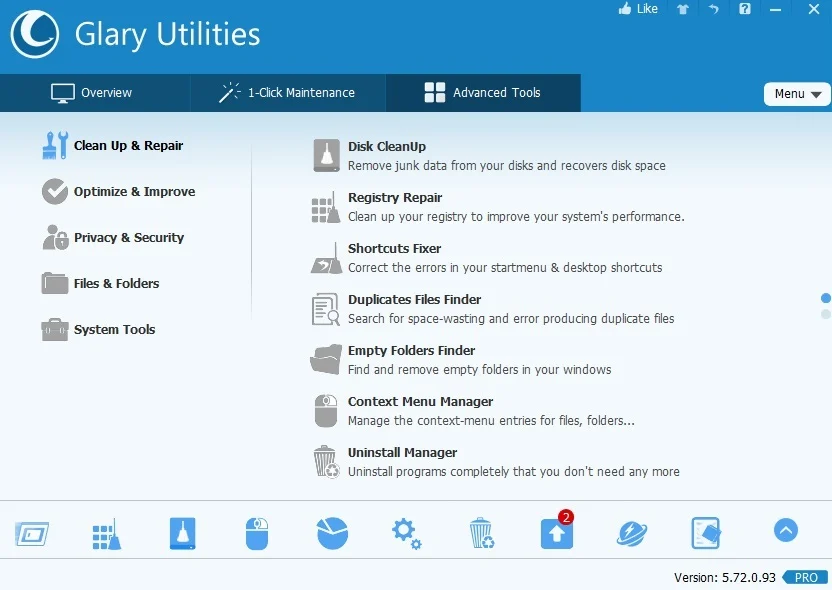
As Windows operating systems age, they inevitably accumulate residual files, broken shortcuts, obsolete registry entries, and unneeded background processes that drain hardware resources. Glary Utilities Pro acts as a centralized maintenance dashboard designed to counter this software degradation. Instead of requiring users to navigate multiple deep system menus to clear cache, disable startup items, or manage hard drive space, this application consolidates over twenty specific administrative functions into a single interface. The primary objective is to restore native system responsiveness without forcing the user to perform a clean operating system reinstallation. By addressing the root causes of system slowdowns directly within the local file structure, it bypasses the need for manual troubleshooting and constant technical interventions.
This utility suite caters specifically to desktop administrators, office workers, and PC gamers who notice increased boot times or unexplained storage space deficits. While web browser extensions or lightweight disk sweepers only clear internet history and temporary download folders, a dedicated desktop application interacts directly with core system directories. It accesses the Windows registry, manipulates boot sequence configurations, and analyzes raw disk sectors. By keeping these operations local, the software ensures that privacy sweeps and file shredding happen at the hardware level, bypassing cloud dependency. There is no requirement to upload diagnostic logs to external servers, which keeps sensitive hardware data entirely on the user's physical machine.
Users typically deploy this program when facing tangible workflow friction, such as a localized drive reaching maximum capacity or a high CPU load caused by forgotten background applications. Rather than guessing which temporary folder is consuming gigabytes of space, operators rely on the built-in storage analyzers and uninstallation managers to identify and remove the exact culprits. The inclusion of specialized tools like context menu editors and duplicate file finders pushes the utility beyond basic junk removal, turning it into a practical repair kit for daily desktop management. This approach allows users to actively extend the lifespan of older hardware by minimizing the operating system's operational footprint.
Key Features
- 1-Click Maintenance: This core module executes a multi-pass system scan across registry errors, temporary files, browser history, and startup applications simultaneously. Users click a single button on the main dashboard, and the software generates an itemized list of potential fixes grouped by category. You can review the exact file paths and registry keys flagged for deletion before applying the changes, ensuring vital data remains untouched. This module prevents operators from having to open five different maintenance utilities to achieve a clean baseline state.
- Startup Manager and Boot Analyzer: This tool directly addresses slow system boot times by listing every program, service, and scheduled task that launches alongside Windows. It measures the exact delay each item causes in milliseconds, providing a clear metric for which background apps cause the most friction. Users can toggle switches to delay certain programs from starting immediately, which staggers the CPU load and brings the desktop to a usable state much faster.
- Disk Space Analyzer: Instead of manually checking folder properties in the file explorer, this visualization tool scans local drives and displays storage usage in a hierarchical chart. It highlights the largest individual files and heaviest directories, allowing operators to quickly locate forgotten video exports or massive log files. You can delete these space-hogging items directly from within the analyzer interface without navigating away.
- Privacy Sweeper and File Shredder: Standard file deletion only removes the directory reference, leaving the actual data recoverable on the physical drive. The built-in file shredder overwrites the selected files multiple times using Department of Defense standards, preventing data recovery software from extracting sensitive documents. Meanwhile, the privacy sweeper automatically clears browser cache, tracking cookies, and recent document histories across all installed web browsers.
- Context Menu Manager: Over time, third-party software installations clutter the right-click menu with unwanted options and shortcuts. This editor allows users to view every shell extension registered in the operating system and selectively disable the ones they no longer need. Removing these excess entries speeds up the right-click response time in the file explorer and streamlines daily file management tasks.
- Duplicate File Finder: This storage optimization tool scans chosen directories or entire partitions to locate identical files, even if they have been renamed. It uses byte-to-byte comparison algorithms to guarantee the files are exact duplicates before flagging them. Users can sort the results by size or file type, and utilize selection filters to keep the newest version while discarding the redundant copies to reclaim disk space.
How to Install Glary Utilities Pro on Windows
- Download the official Windows executable installer package from the Glarysoft website and save it to your local storage drive.
- Double-click the downloaded setup file to launch the installation wizard, which will prompt the Windows User Account Control dialogue to request administrative privileges.
- Accept the End User License Agreement after reviewing the terms governing local software usage and data handling.
- Select the destination folder for the application files; leaving the default path in the primary program directory is generally recommended to avoid specific folder permission errors.
- Choose whether to create a desktop shortcut icon and a start menu folder, and decide if you want the application to participate in the customer experience improvement program by checking the respective boxes.
- Click the install button to let the setup wizard extract the necessary components and write the core application files to your system drive.
- Once the loading bar completes, check the box to launch the program immediately and exit the setup wizard.
- Upon first launch, navigate to the license management window to enter your subscription credentials, which unlocks the automated maintenance modules and deep cleaning tools.
Glary Utilities Pro Free vs. Paid
The baseline version, simply called Glary Utilities, is entirely free for personal use and includes the core manual cleaning tools, the startup manager, and basic system tweaks. Users on this unpaid tier must manually open the application, run the scans, and apply the fixes themselves. It serves as a highly capable maintenance tool for individuals willing to spend time analyzing their own system logs and storage drives, though it lacks the background automation found in the premium tier. The free edition also omits advanced registry repair depth and specialized technical support.
Upgrading to Glary Utilities Pro introduces automated background maintenance, deep registry repair algorithms, and automatic software updates. The professional tier allows users to schedule routine cleanups during idle hours or specific days of the week, reducing the need for manual intervention. Furthermore, the paid application includes a feature that automatically erases privacy tracks and temporary files the moment the user logs off or shuts down the computer, ensuring consistent privacy protection without requiring the user to initiate a scan.
Pricing for the professional edition is structured as a subscription, standardly costing $39.95 for a one-year license that covers up to three independent computers. Glarysoft frequently offers promotional discounts that can reduce the first-year cost to $19.97. All premium licenses include direct access to priority technical support and are backed by a 90-day money-back guarantee, allowing administrators to test the software's impact on their hardware before committing long-term. Occasionally, the vendor offers a perpetual lifetime license for a higher upfront cost, though availability varies based on current promotional cycles and store sales.
Glary Utilities Pro vs. CCleaner Professional vs. Advanced SystemCare Pro
CCleaner Professional operates as a highly focused utility specifically engineered to sweep temporary data, browser caches, and tracking cookies with minimal user friction. It features a highly streamlined interface that favors simplicity, making it an excellent choice for users who simply want to reclaim hard drive space without navigating complex administrative menus. However, when operators require advanced system controls—such as managing right-click context menus, analyzing deep folder structures for large files, or splitting and joining large archives—CCleaner falls short, lacking the broad utility collection that Glarysoft provides. CCleaner focuses strictly on deletion, whereas Glarysoft includes optimization tools for RAM mapping and file recovery algorithms for accidental deletions.
Advanced SystemCare Pro takes an aggressive, highly visual approach to PC optimization, heavily emphasizing a modernized interface and real-time performance monitors that sit directly on the desktop. It bundles additional security tools, including anti-spyware engines and active web protection, which appeals to users looking for a hybrid maintenance and security application. While these active monitors look impressive, they consume consistent CPU and RAM resources in the background, which can be counterproductive for users trying to maximize hardware availability; Glarysoft takes a much quieter, less intrusive approach to background operation.
Glary Utilities Pro is the better fit for pragmatic users and system administrators who want a massive variety of specific, granular tools housed within a single, functional dashboard. It strips away flashy desktop widgets and avoids heavy real-time security monitoring in favor of practical utilities like duplicate file finders, empty folder sweepers, and memory optimization protocols. If the goal is to manually fine-tune boot sequences, shred sensitive data, and deeply manage the operating system without adding unnecessary background weight, this toolset delivers a highly effective and practical workflow.
Common Issues and Fixes
- Aggressive registry cleaning causes system instability. Running the registry repair tool with all boxes checked can sometimes remove necessary third-party application keys, causing those programs to fail upon launch. To fix this, open the built-in Rescue Center located at the bottom of the main interface, select the most recent backup date, and click restore to revert the registry to its previous working state.
- Legitimate files are deleted by the Duplicate Finder. Users often scan their entire primary drive and blindly delete duplicates, accidentally removing necessary backup configurations or identical files required by different game engines. Always restrict the Duplicate Finder scan to specific media folders or document directories, and use the Ignore List in the settings menu to exclude critical operating system paths before executing a deletion.
- High CPU usage occurs during background optimization. The automatic scheduled maintenance can trigger while you are running resource-intensive applications, causing noticeable lag and system stutter. Open the settings menu, navigate to the Auto Care tab, and either adjust the schedule to run only during idle night hours or disable it entirely in favor of manual scanning.
- The software updater incorrectly flags current applications as outdated. The internal database that checks for third-party software versions occasionally falls out of sync, prompting you to download updates for programs you just installed. Ignore the specific prompt within the Software Update module by right-clicking the application name and selecting the option to skip that specific version notification to stop the recurring alert.
- Valid startup items are blocked by mistake. When utilizing the boot analyzer, users might toggle off background services that are actually required for specialized hardware like audio interfaces or custom mouse drivers. If a peripheral stops functioning after a tune-up, return to the Startup Manager, locate the related driver service in the disabled list, and switch it back to the active state before restarting the computer.
Version 6.35.0.39 — December 2025
- Improved Disk Cleaner performance by refining scanning and cleaning algorithms for system and user temporary files.
- Enhanced Tracks Eraser with better cleanup algorithms for Microsoft Office traces.
- Optimized Quick Search startup algorithm for smoother operation.
- Made interface adjustments for better usability.
- Resolved various minor bugs.