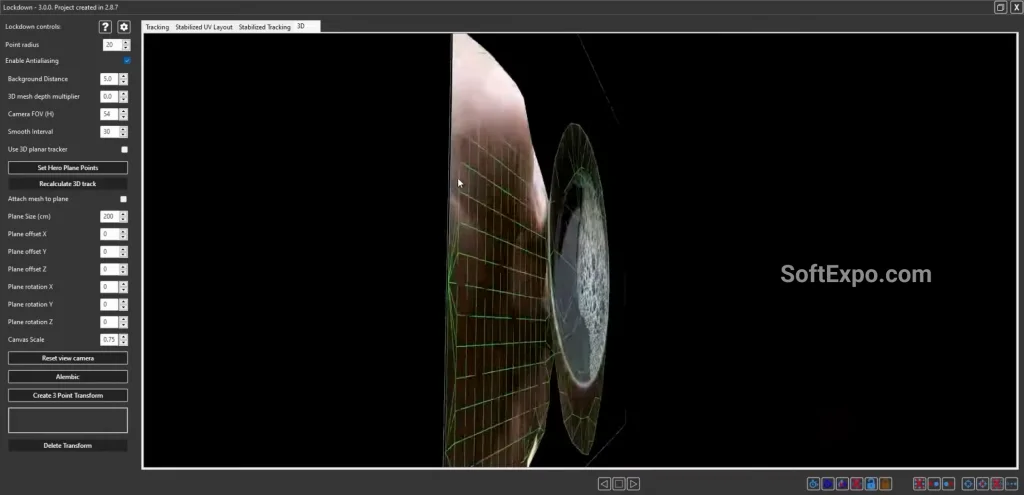
Lockdown is a specialized plug-in for Adobe After Effects designed to track warping surfaces that standard planar trackers cannot handle. While traditional trackers work well on rigid objects like walls or screens, Lockdown generates a mesh that deforms with organic subjects such as skin, fabric, or muscle movements. This capability allows visual effects artists to retouch faces, add tattoos to moving skin, or replace logos on crinkling shirts with high precision.
Key Features
- Warping Mesh Tracking: Generates a deformable mesh that follows the surface of organic objects, keeping textures locked in place even as the subject moves and distorts.
- 3D Depth Estimation: The latest versions (Lockdown 3 and up) can estimate 3D depth from 2D footage, allowing you to export meshes to 3D software like Cinema 4D or Blender.
- Stabilized Composition: Automatically creates a stabilized pre-composition where the footage appears static, allowing for easy painting, retouching, or compositing without manually matching movement.
- Paint Link: A feature that connects After Effects with external image editors, enabling frame-by-frame painting or the use of generative fill tools on moving video.
- Fast Tracking Modes: Includes multiple tracking accuracy modes, from fast previews to extremely accurate high-resolution tracking for difficult shots.
Installation and Setup
To install Lockdown on a Windows system, you can use the Aescripts manager app for an automated process or install the files manually.
Manual Installation:
1. Download the plugin archive from the developer's site.
2. Extract the contents and locate the Lockdown.aex file.
3. Copy this file into your After Effects plug-ins directory, typically located at: C:Program FilesAdobeAdobe After Effects [Version]Support FilesPlug-ins.
4. Restart After Effects to load the new tool.
Licensing:
Lockdown is a paid plugin available through Aescripts + Aeplugins. You can use it in trial mode, which places a grid watermark over the output, until a license key is purchased and activated within the effect controls.
How to Use Lockdown
The core workflow involves tracking the surface and then composing your graphics on a stabilized view.
- Apply the Effect: Drag your footage into a new composition that matches its frame rate and resolution. Apply the Lockdown effect from the Effects menu.
- Create Tracking Points: In the effect controls, click the "Pop Out" button to open the tracking interface. Hold Ctrl and click-drag across your subject to generate a grid of tracking points.
- Track the Footage: Click "Track All" within the Lockdown interface. The system will analyze the motion of the points. You can refine the track by deleting bad points (Alt-click) or adding new ones where detail is lost.
- Stabilize: Once tracking is complete, close the pop-out window and click the "Lockdown" button in the main effect panel. This creates a stabilized composition.
- Composite: Open the stabilized composition. Place your text, logo, or paint work here. Because the view is locked, you do not need to animate the position. When you return to the main composition, your work will be perfectly warped to the original moving footage.
Compatibility
Lockdown requires a modern Windows environment to function correctly.
- Windows: Windows 10 or Windows 11 (64-bit).
- Adobe After Effects: Compatible with CC 2022 and newer versions.
- Hardware: A dedicated GPU is highly recommended for rendering the mesh, and at least 32GB of RAM is suggested for handling high-resolution tracking data.